 WhoSees
What you'll see
- Which app is sending data, by its real name.
- Which company receives it: Google, Meta, Amazon, or an advertising or analytics firm you've never heard of. Trackers and advertisers are labelled.
- Where in the world it goes, drawn live on a map from wherever you are.
- What kind of data it probably is, like your location or advertising ID, plus a privacy report for each app.
- Warnings when an app connects to a known scam website or malware server.
How to install WhoSees on Android, step by step
WhoSees isn't on Google Play yet, so you install it from this page. It takes about two minutes. The pictures are from a phone running Android 16 with Chrome; other phones look a little different but the steps are the same.
You need Android 10 or newer and about 200 MB free. You do not need to root your phone, and on most phones you do not need Developer options (see when you might).
1. Download the app
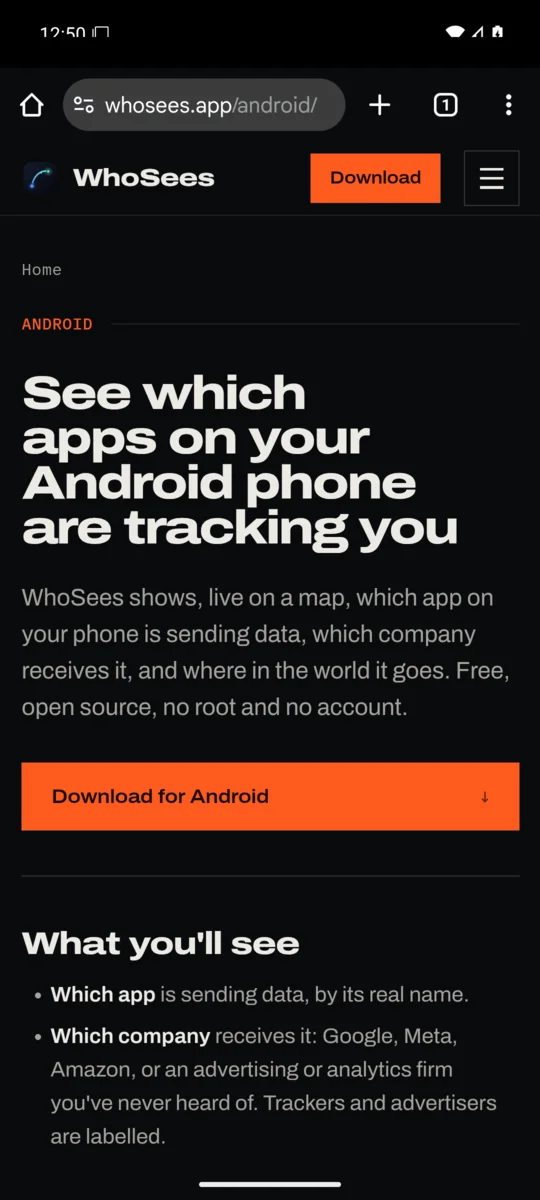
On your phone, open this page in Chrome (or your usual browser) and tap Download for Android. The file is called WhoSees-Android.apk and is about 80 MB.
 1
- 1Tap Download for Android.
2. Open the downloaded file
When the download finishes, open it in one of these ways:
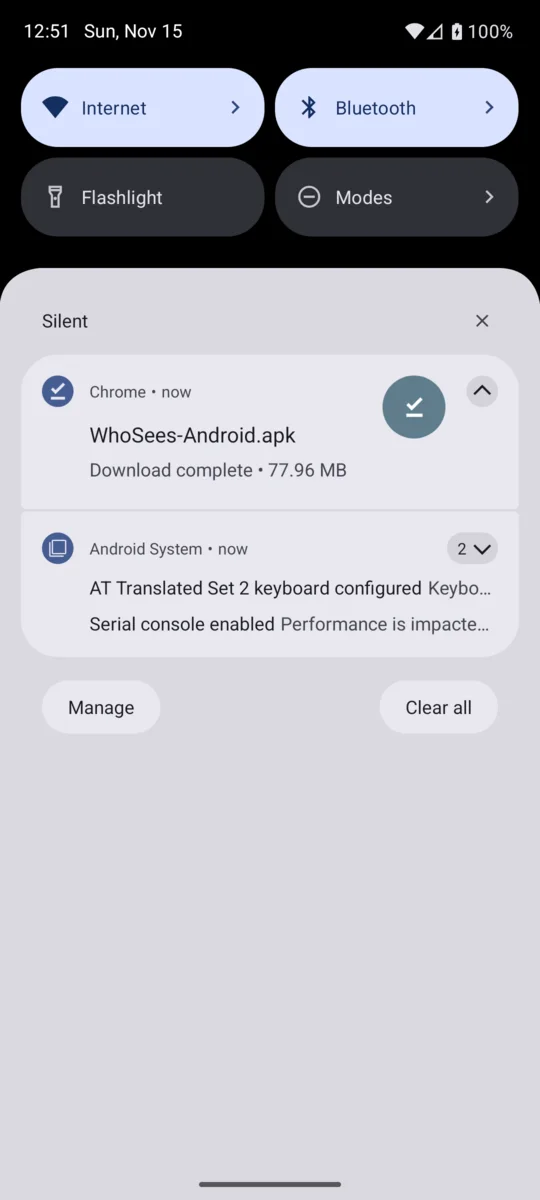
- Swipe down from the top of the screen and tap the Download complete notification for
WhoSees-Android.apk. - Or in Chrome tap ⋮ → Downloads and tap the file.
- Or open the Files app (Samsung: My Files), go to Downloads and tap the file.
If your browser asks whether to keep a file of this type, choose Download anyway.
 1
- 1Tap the finished download.
3. Allow your browser to install apps (first time only)
Android protects you from apps installed outside the Play Store, so the first time it asks for permission:
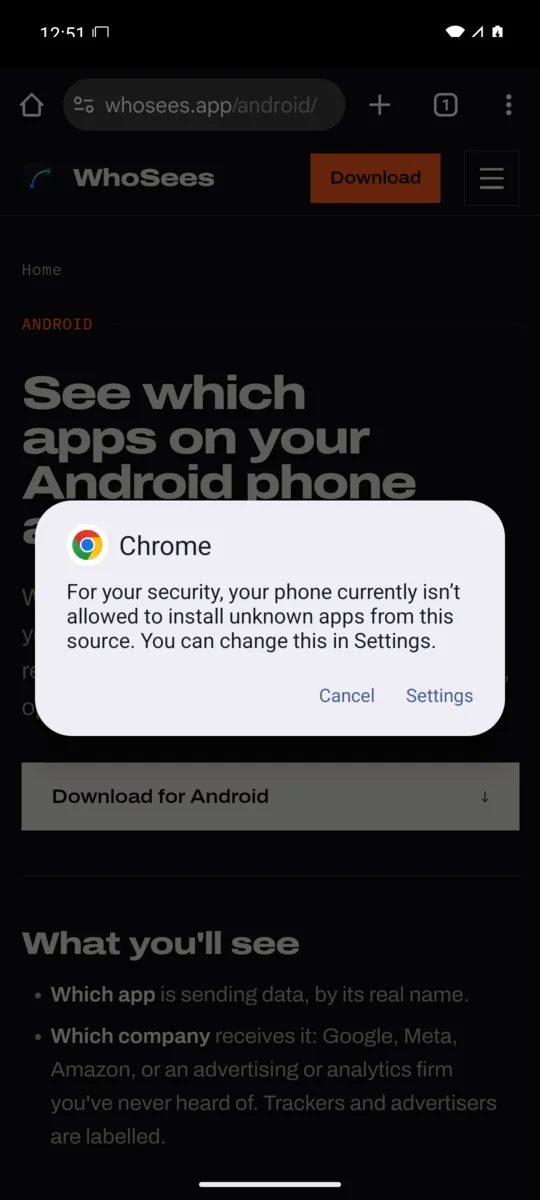
- Android says "For your security, your phone currently isn't allowed to install unknown apps from this source." Tap Settings.
- Turn on Allow from this source. This only lets your browser install apps you choose to open; you can turn it off again afterwards.
- The install question comes back on its own (on some phones, press Back).
 1
- 1Tap Settings.
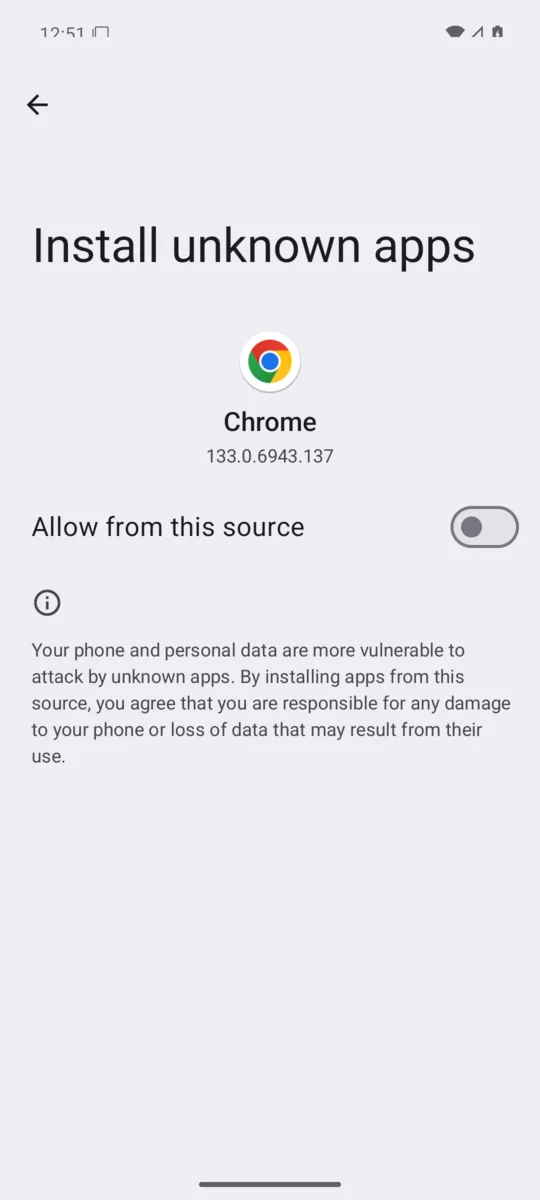 1
- 1Turn on Allow from this source.
4. Install
- Android asks "Do you want to install this app?" Tap Install.
- When it says App installed, tap Open.
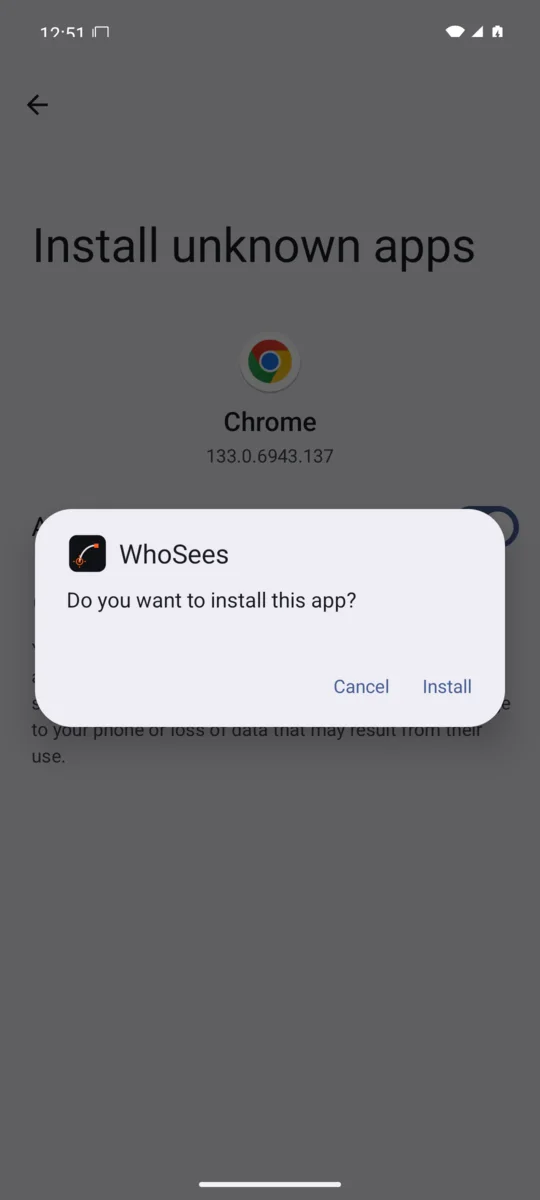 1
- 1Tap Install.
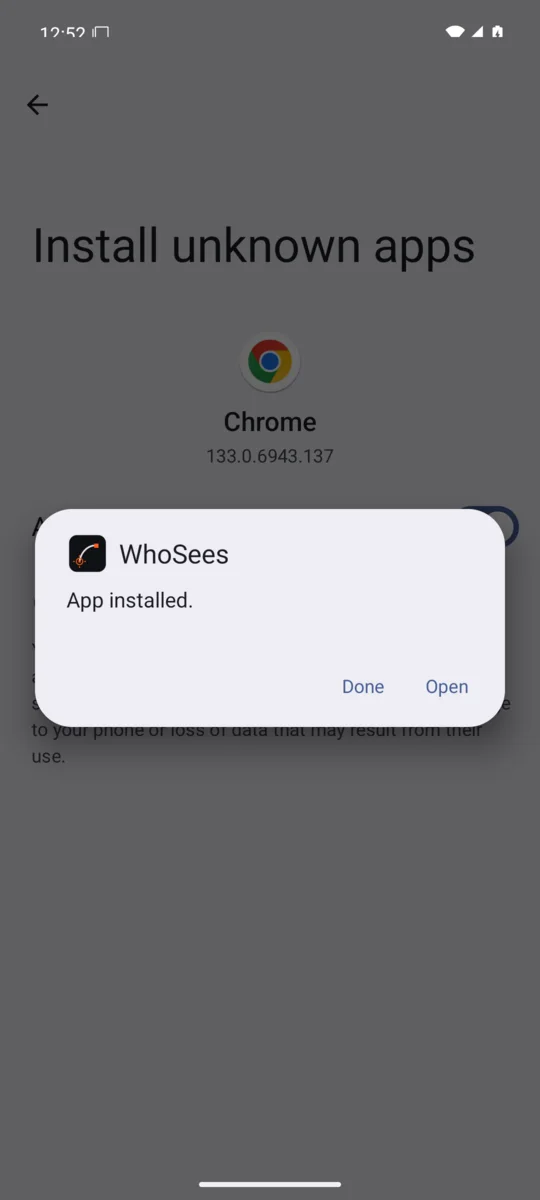 1
- 1Tap Open.
5. Start WhoSees
Choose whether WhoSees may check for updates (it's off unless you turn it on), set your city if asked, and tap Start live view. Android then asks to allow a VPN: tap OK. The user guide shows what happens next.
If something blocks the install
Google Play Protect
Google Play Protect checks apps installed from outside the Play Store. For a new app it may show one of these:
- "App scan recommended": tap Scan app. WhoSees is open source and contains nothing harmful, so it installs after the scan. You can also choose Install without scanning.
- "Unsafe app blocked" or "Harmful app blocked": tap More details, then Install anyway. Play Protect is cautious with apps it hasn't seen before, and apps that use a VPN look unusual to it.
Samsung phones: Auto Blocker
Many Samsung Galaxy phones have Auto Blocker turned on, which stops any app from outside Google Play or the Galaxy Store, with no "install anyway" button. To install WhoSees:
- Open Settings → Security and privacy → Auto Blocker.
- Turn it off, then install WhoSees as above.
- Turn Auto Blocker back on afterwards if you like. WhoSees keeps working. (Newer Samsung software may turn it back on by itself after a while.)
Other phone makers have similar switches, for example Xiaomi's Install via USB or security scan prompts. If an install is blocked with no way forward, look in Settings → Security.
"App from an unverified developer" and Developer options
Google is changing how apps from outside the Play Store are installed. Since September 30, 2026 in Brazil, Indonesia, Singapore and Thailand, and in every country from 2027, Android only installs apps from developers who have verified their identity with Google, unless you choose to allow others. If Android tells you WhoSees is from an unverified developer and won't install it, you can allow it once through Developer options:
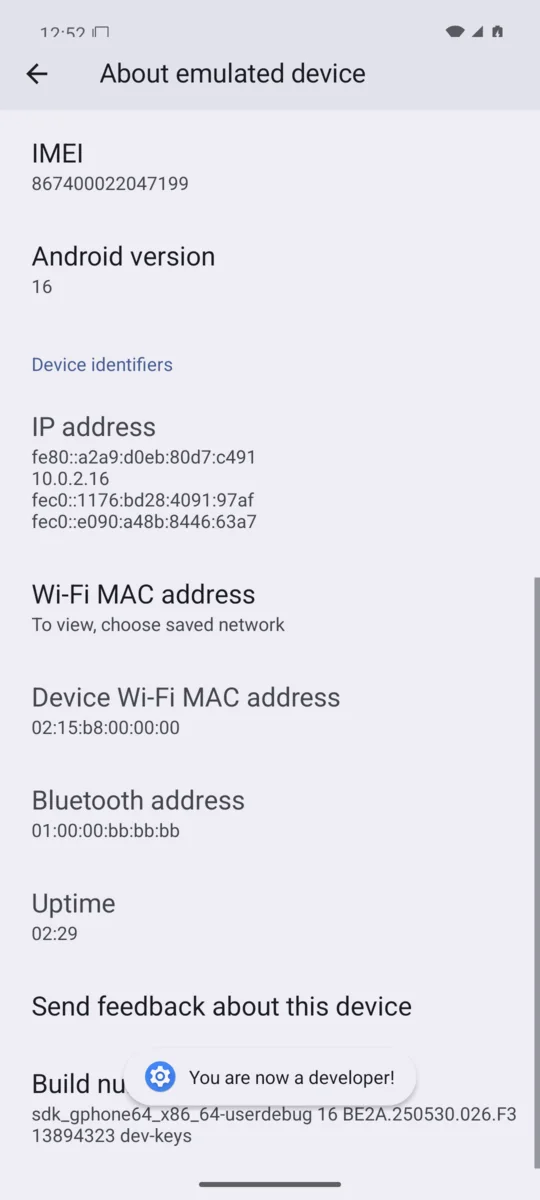
- Turn on Developer options. Open Settings → About phone (Samsung: Settings → About phone → Software information) and tap Build number seven times. Enter your PIN if asked. Android says "You are now a developer!"
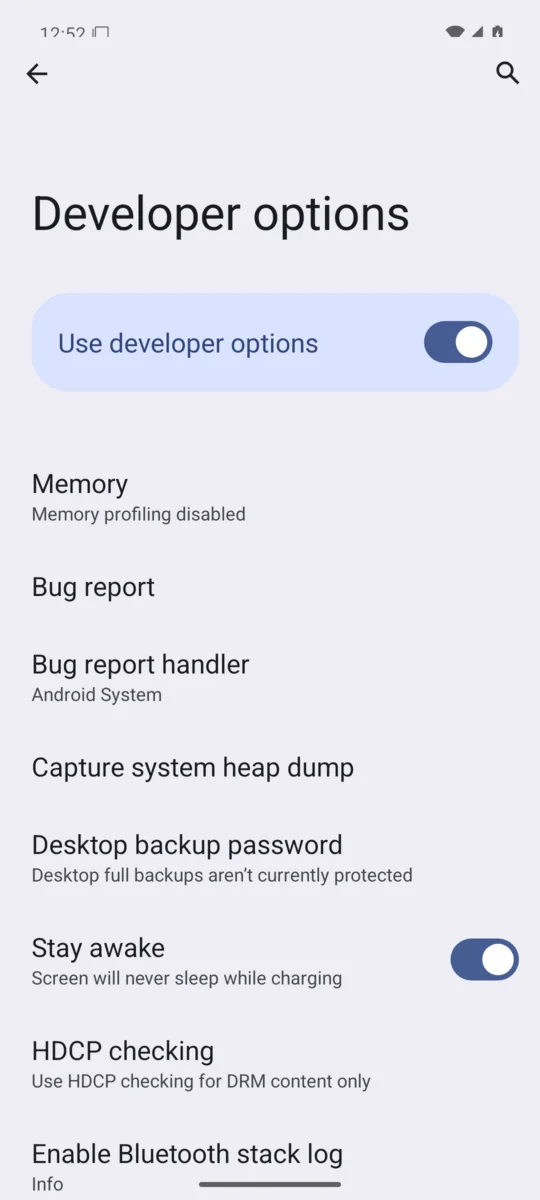
- Open Settings → System → Developer options (Samsung: Developer options is at the bottom of Settings).
- Find Apps from unverified developers, turn it on, and confirm that nobody is asking you to do this.
- Restart your phone. Android then makes you wait 24 hours (once per phone), a safety measure against scammers who pressure people over the phone.
- After the wait, go back to the same setting, confirm with your fingerprint, face or PIN, and choose Allow temporarily (7 days) or Allow indefinitely.
- Install WhoSees as above. When Android warns about the unverified developer, tap Install anyway.
- You can turn Developer options off again afterwards: Developer options → Use developer options → off.
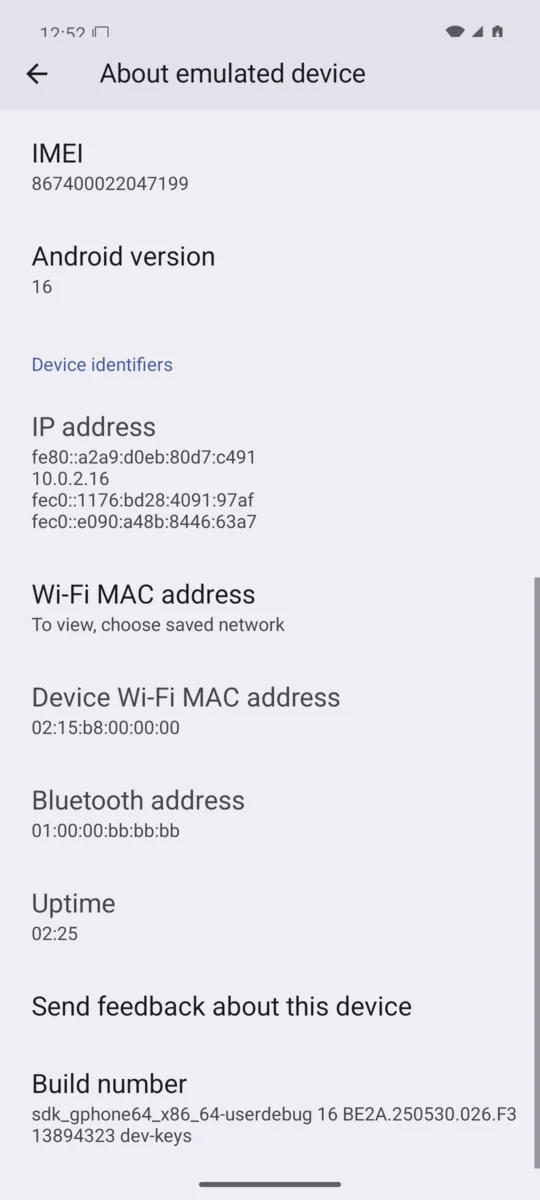 1
- 1Tap Build number seven times.
 1
- 1The message appears here.
If you're comfortable with a computer, you can install with Android's own tools instead, which skips the waiting period: turn on Developer options → USB debugging, connect the phone, and run adb install WhoSees-Android.apk. Turn USB debugging off again when you're done.
Outside the countries listed above, none of this is needed yet: the normal steps work.
Why Android asks to "set up a VPN connection"
The first time you press Start, Android asks whether WhoSees may set up a VPN connection. Tap OK. A VPN is the only way Android lets an app see where other apps send data.
WhoSees isn't a VPN service. Your traffic isn't sent to any server: WhoSees notes where each connection goes and passes it straight on, so your apps work exactly as before. You'll see a key icon while it runs, and it stops the moment you press Stop.
Private DNS and website names
If your phone uses Private DNS with a named provider, the names of the websites your apps visit are encrypted, so WhoSees can't show them. You'll still see which app, which company and which country. WhoSees tells you when this is the case. Read about Private DNS.
Requirements
| NEEDS | |
|---|---|
| Android | Android 10 or newer |
| Phone | 64-bit (almost every phone from the last several years) |
| Space | About 80 MB to download |
Updating and uninstalling
To update, download the newest version from this page and install it over the old one, following the same steps; your settings are kept. WhoSees can also tell you when a new version is out if you turn on Settings → Check for updates. To remove WhoSees: Settings → Apps → WhoSees → Uninstall.
Install problems
| WHAT YOU SEE | WHAT TO DO |
|---|---|
| "App not installed" or "conflicts with an existing package" | An older test version of WhoSees is installed. Uninstall it first, then install again. |
| "There was a problem parsing the package" | The download didn't finish. Delete the file from Downloads and download it again. |
| The install is blocked with no button to continue | On Samsung, turn off Auto Blocker (see above). Otherwise check Settings → Security. |
| Can't find "Install unknown apps" | Open Settings → Apps → Special app access → Install unknown apps, pick your browser or Files app, and turn on Allow from this source. |
| "App from an unverified developer" | See Developer options above. |
| Nothing happens when tapping the download | Open the Files app → Downloads and tap WhoSees-Android.apk there. |
Questions
Does WhoSees need root?
No. WhoSees uses Android's built-in VPN feature, which any app can use with your permission. No root or special setup is needed.
Is WhoSees a VPN service?
No. Android calls it a VPN because that's the only way an app can see where other apps send data. Everything stays on your phone: nothing is sent to a VPN server or to us, and your data goes exactly where it was going anyway.
Will it drain my battery?
Only while it's running. WhoSees runs only while you have a live view on, and stops completely when you press Stop.
Is WhoSees on Google Play?
Not yet. For now, install it from this page. A Google Play version is planned.
Do I need Developer options to install WhoSees?
Usually not. Most phones only need you to allow your browser to install apps. Developer options are only needed where Android requires apps from verified developers (Brazil, Indonesia, Singapore and Thailand since September 2026, and everywhere from 2027), or if you install from a computer.
Is it safe to allow installing unknown apps?
Allowing one app, like your browser, to install apps is safe as long as you only install apps you trust. You can turn the permission off again right after installing WhoSees.