 WhoSees
Getting started
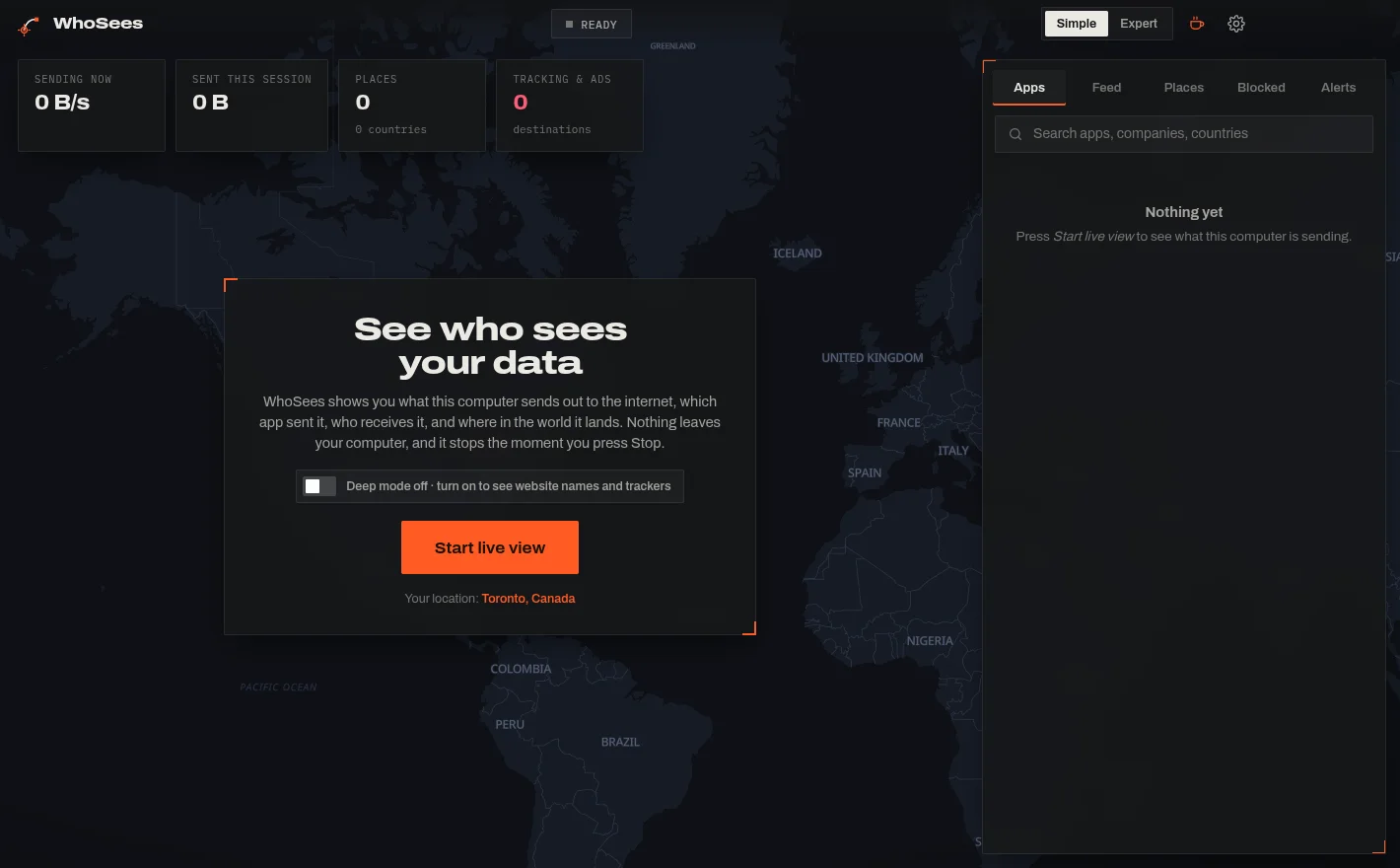
First install WhoSees: see the step-by-step install pages for Android, Windows and Linux. Then open it. You'll see the start screen:
 123
- 1Start live view begins watching. Nothing runs until you press it.
- 2Deep mode switch (computers only): adds website names and catches every connection. More below.
- 3Your location: where the lines on the map start from.
Set your location
- Click or tap the place name next to Your location (or open Settings → Your location → Change).
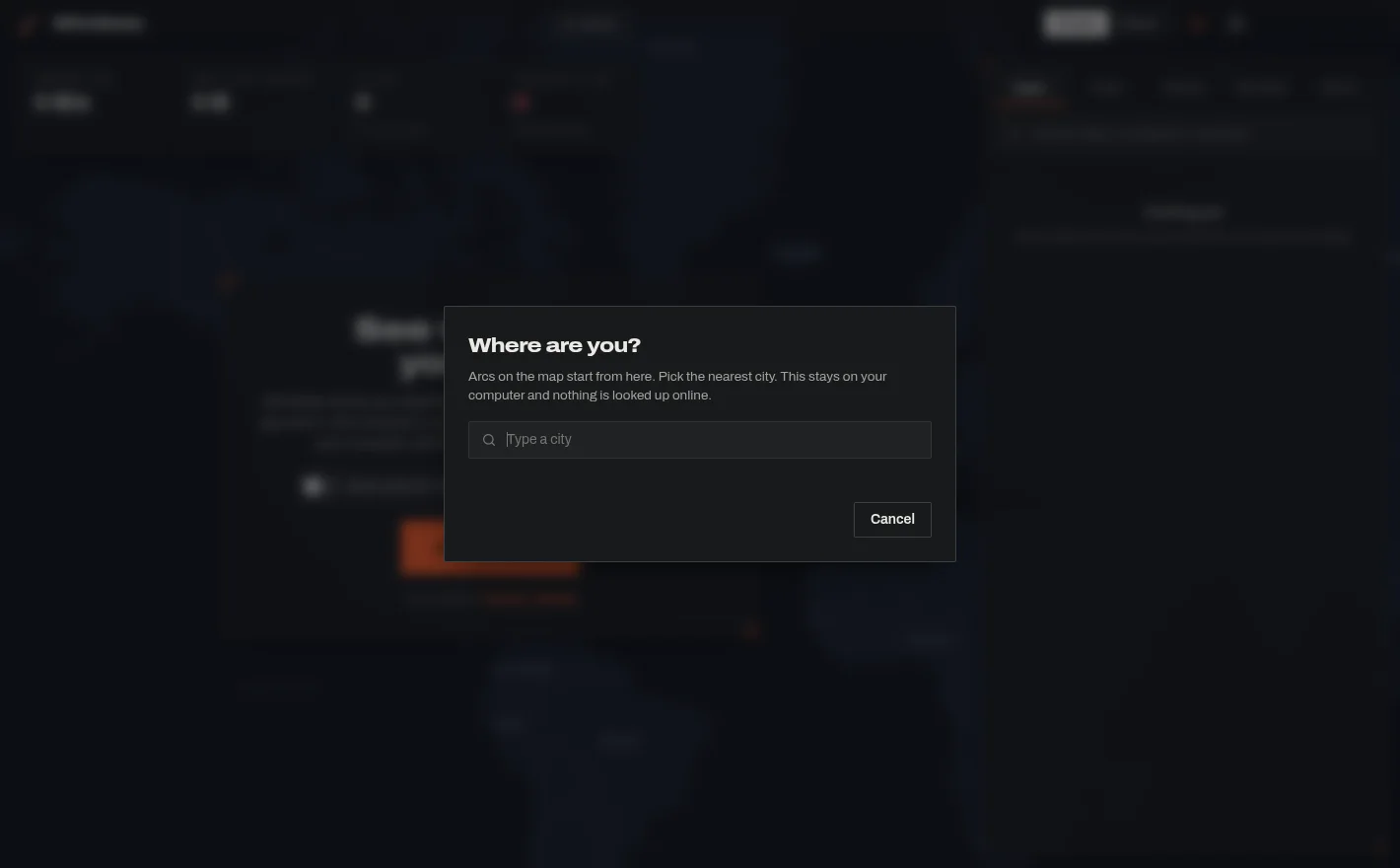
- Start typing your city and pick it from the list. WhoSees looks it up on your device; it isn't sent anywhere.
 1
- 1Type your city, then pick it from the list.
Update checks
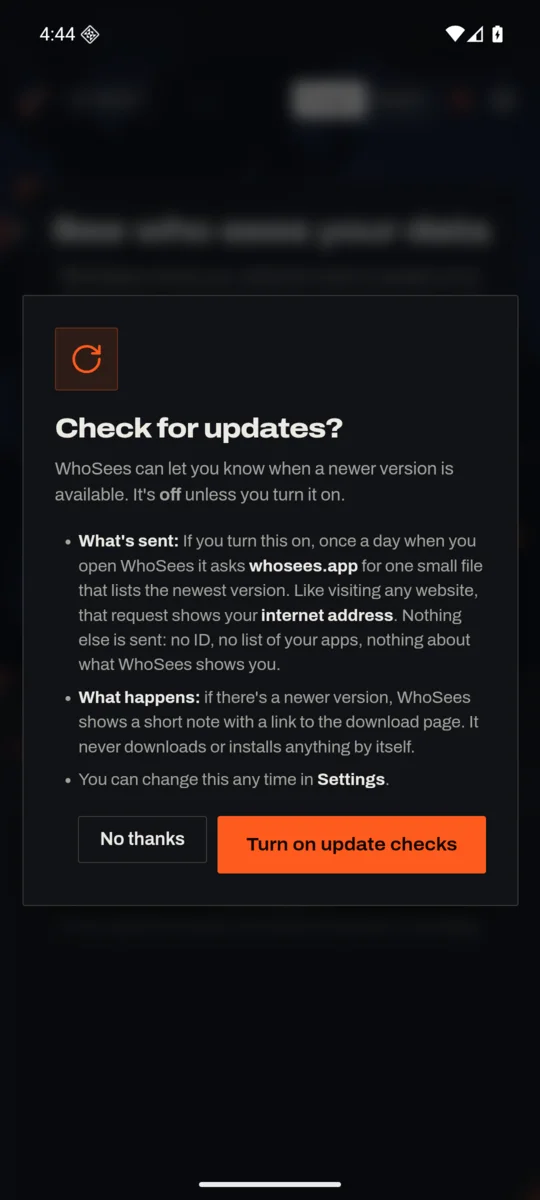
The first time you open WhoSees, it asks whether you'd like it to check for updates. It's off unless you choose Turn on update checks. If you do, once a day when you open WhoSees it asks whosees.app for the newest version number. That request shows your internet address, like visiting any website, and nothing else. When a newer version is out, a short note appears with a Download button that opens the right page; WhoSees never installs anything by itself. You can change this any time in Settings.
 12
- 1No thanks keeps it off.
- 2Turn on update checks
Start a live view
On a computer
- Press Start live view.
- In Standard mode it starts right away, no password needed.
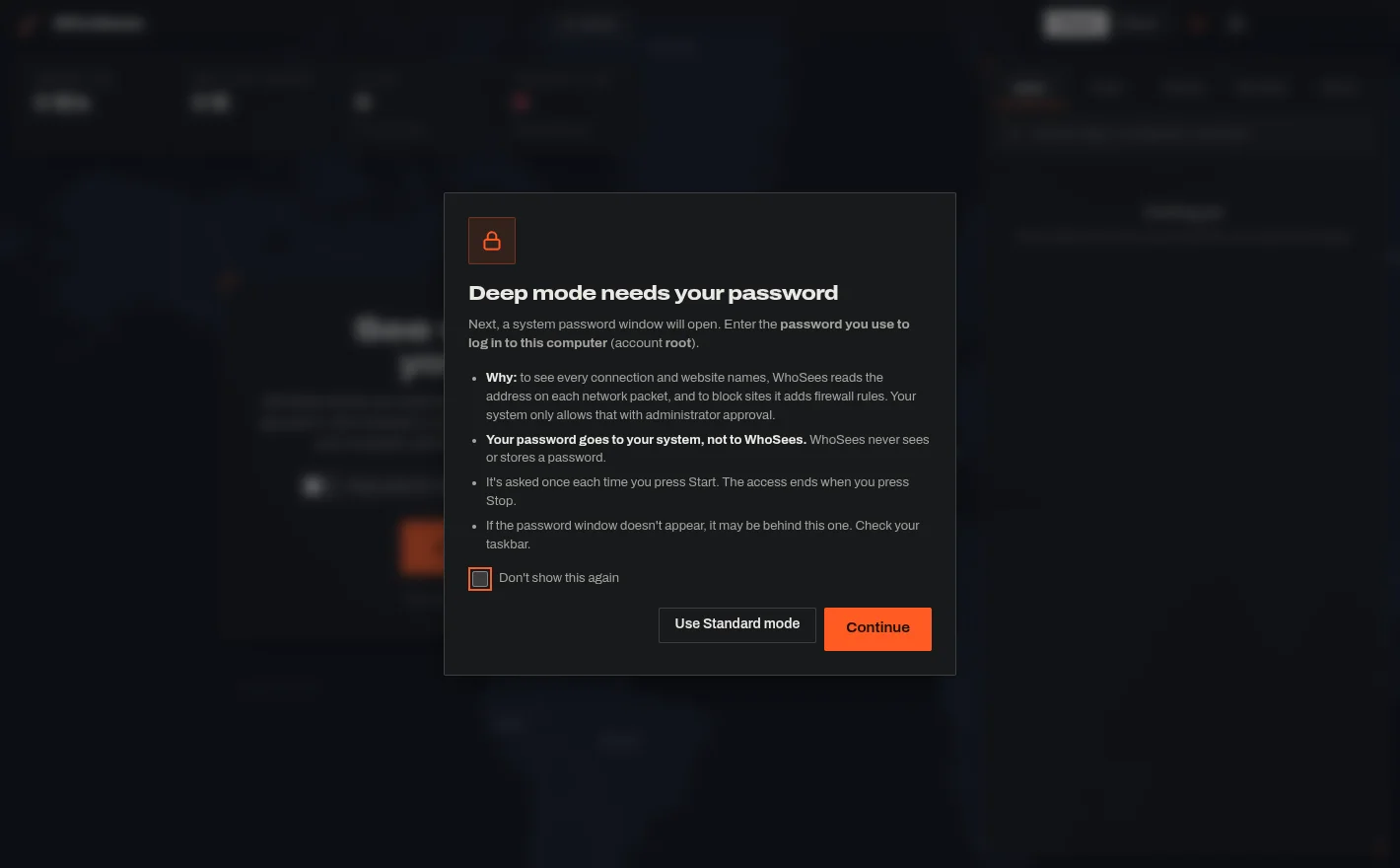
- With Deep mode on, WhoSees first explains what's about to happen. Click Continue, then approve the request: Windows shows a Yes/No prompt; Linux asks for the password you log in with. Your password goes to your system, never to WhoSees.
 12
- 1Continue to Deep mode.
- 2Use Standard mode instead (no password).
Standard shows apps, companies and places. Deep adds the names of the websites, labels trackers more precisely and catches very short connections. Both only look at where data goes, never what's inside it.
On an Android phone
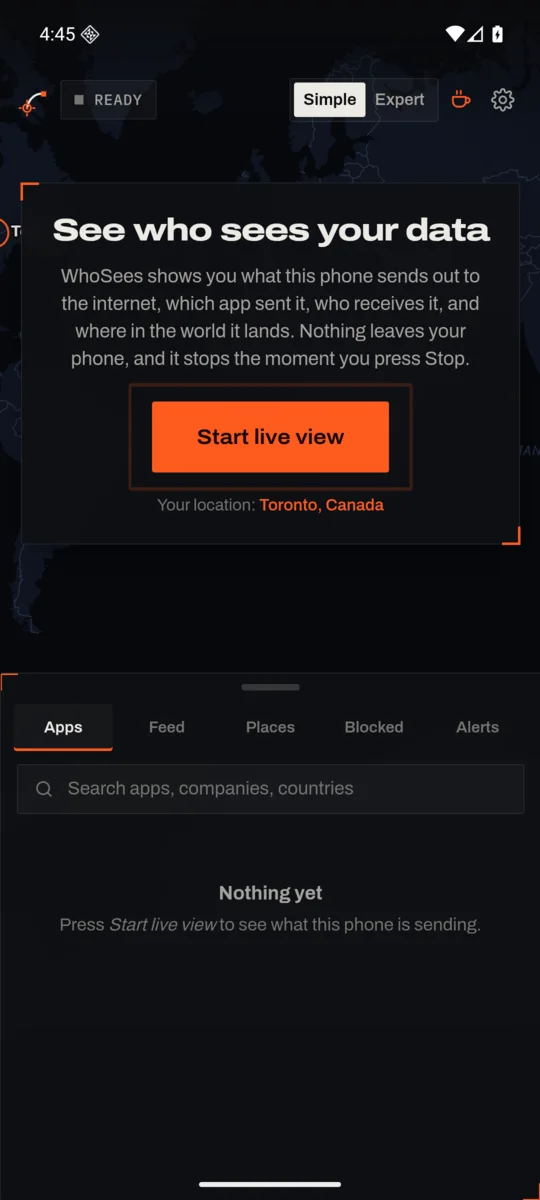
- Tap Start live view.
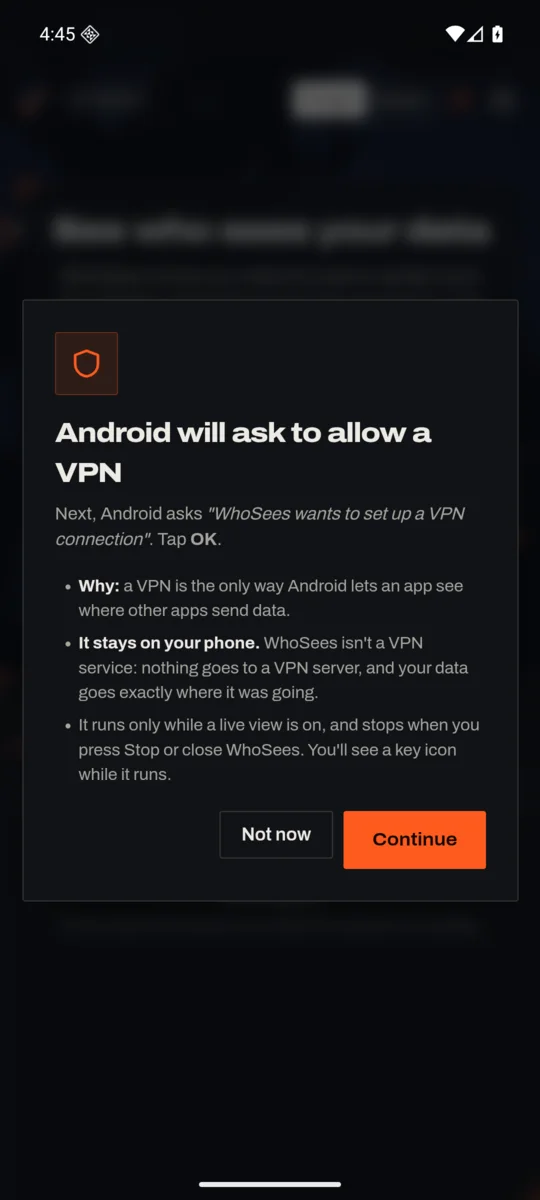
- The first time, WhoSees explains that Android will ask about a VPN. Tap Continue.
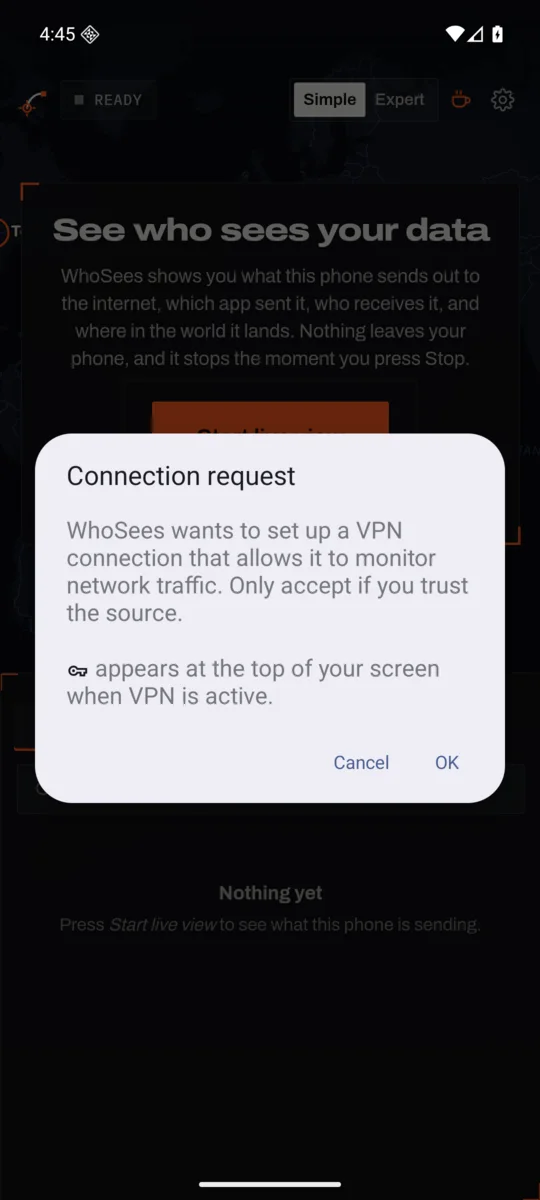
- Android asks "WhoSees wants to set up a VPN connection". Tap OK. The VPN stays on your phone: nothing is sent to a VPN server.
 12
- 1Start live view
- 2Your location
 1
- 1Tap Continue.
 1
- 1Tap OK.
Read the live map
Within seconds, lines start flying from your location to the places your apps send data to. Each colour is a kind of company.
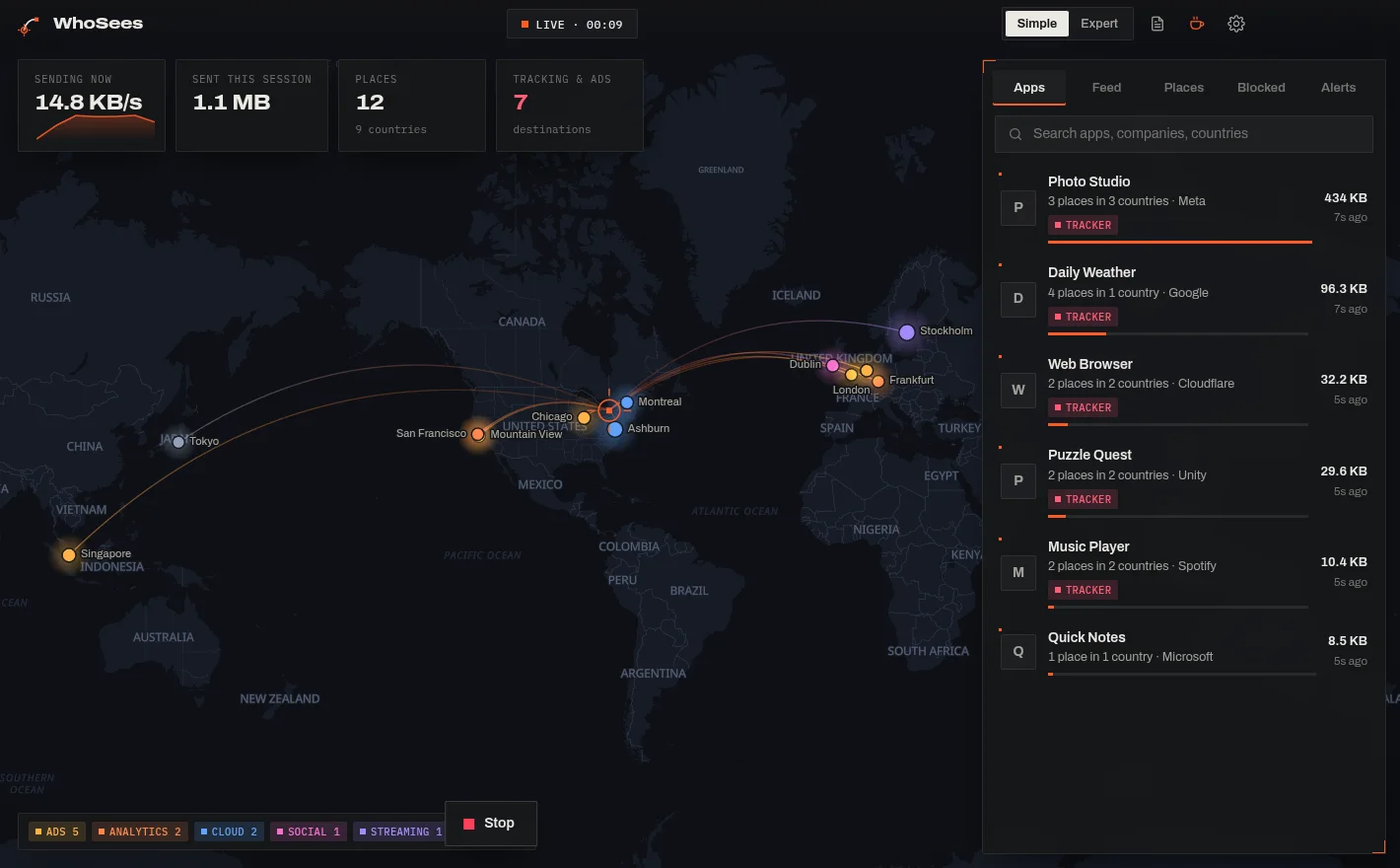 123456
- 1Totals: how fast data is leaving now, how much has been sent, how many places and countries, and how many are trackers or advertisers.
- 2You: your location. Every line starts here.
- 3A destination: a company in another city. Brighter lines are active right now.
- 4Colour key: what the colours mean. Click a colour to hide or show that kind.
- 5Tabs: Apps, Feed, Places and Alerts.
- 6Stop turns WhoSees off.
On a phone, the same things are stacked: the map on top, and a panel underneath you can tap the little handle on to make it bigger or smaller.
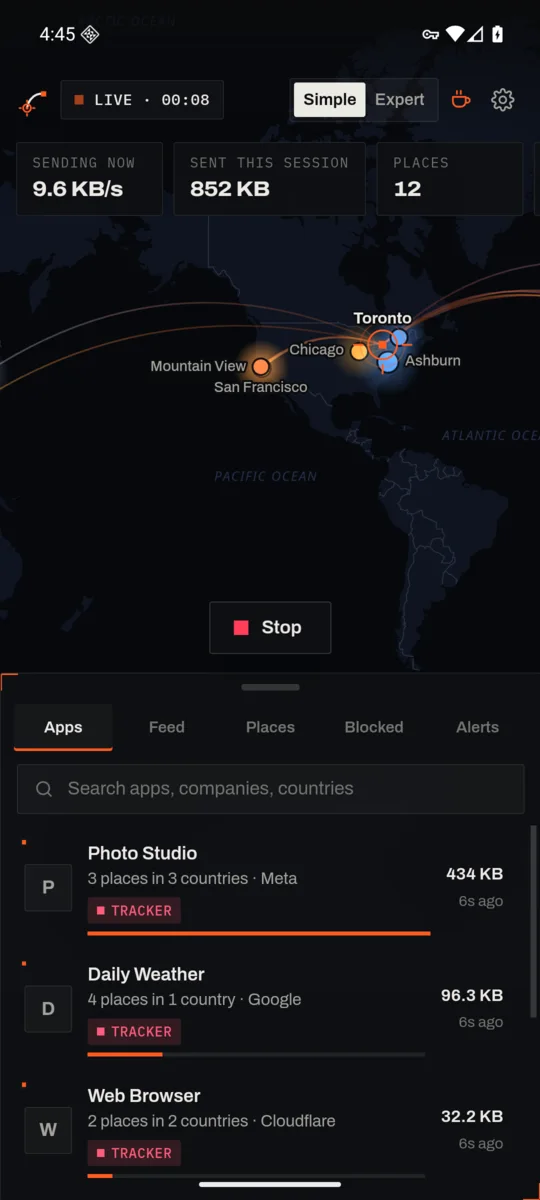 1234
- 1Totals
- 2You
- 3Tabs
- 4Stop
See which apps send the most
- Open the Apps tab. Apps are sorted by how much they've sent.
- Each row says how many places and countries the app talks to, and the main company.
- A red TRACKER label means the app talks to tracking or advertising companies.
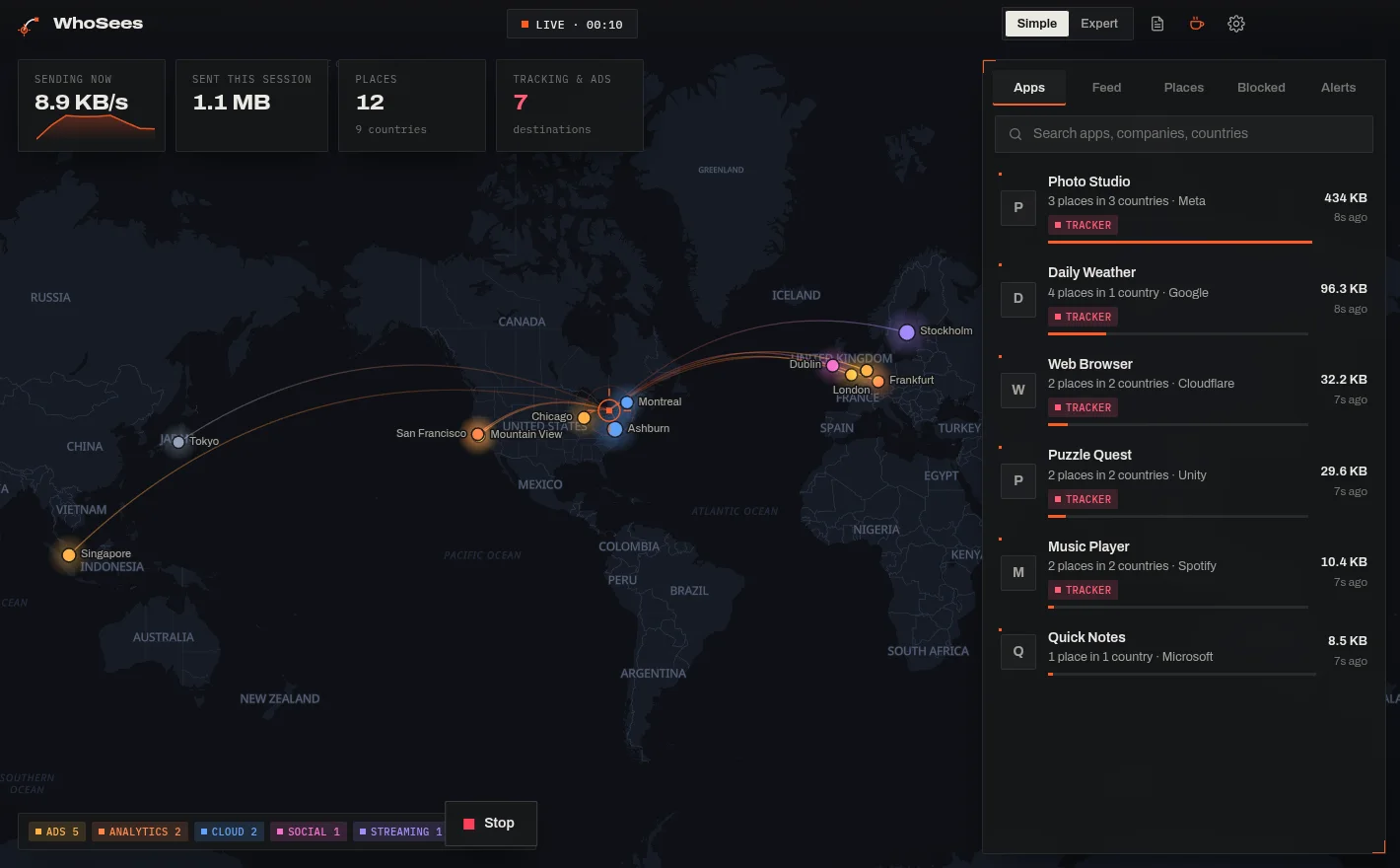 123
- 1An app, with the places and company it talks to. Click it for details.
- 2Tracker label
- 3Search apps, companies or countries.
Find out what an app sends
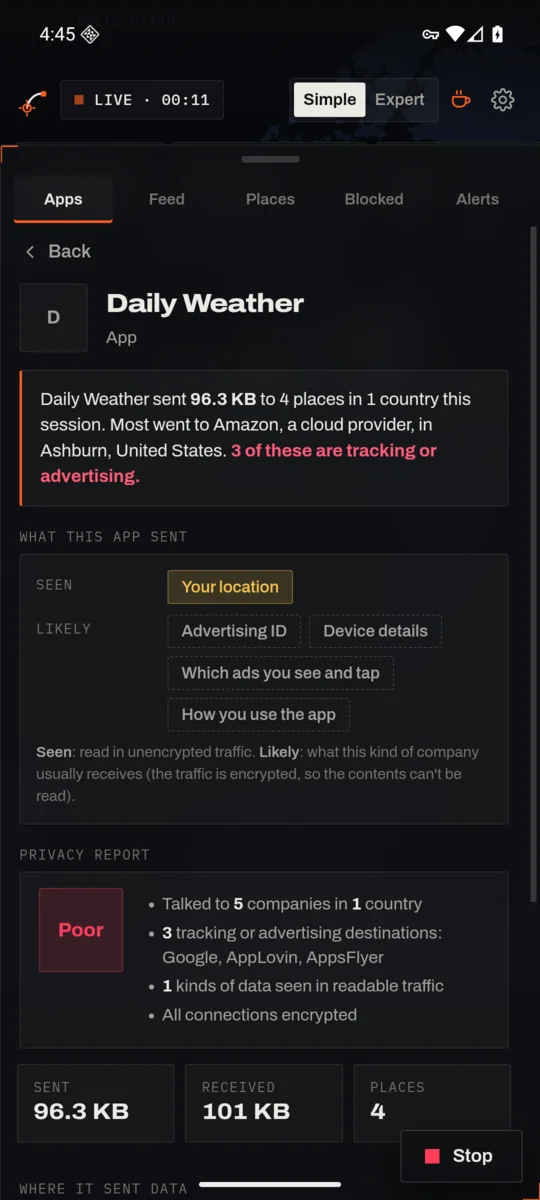
- In the Apps tab, click or tap an app.
- Read the plain-English summary at the top.
- Under What this app sent: Seen means WhoSees read it in data sent without encryption (like your location). Likely means the traffic was encrypted, so WhoSees tells you what that kind of company usually receives.
- The Privacy report gives a simple grade (Good, Fair or Poor) and why.
- Scroll down to see every place it sent data, then press Back.
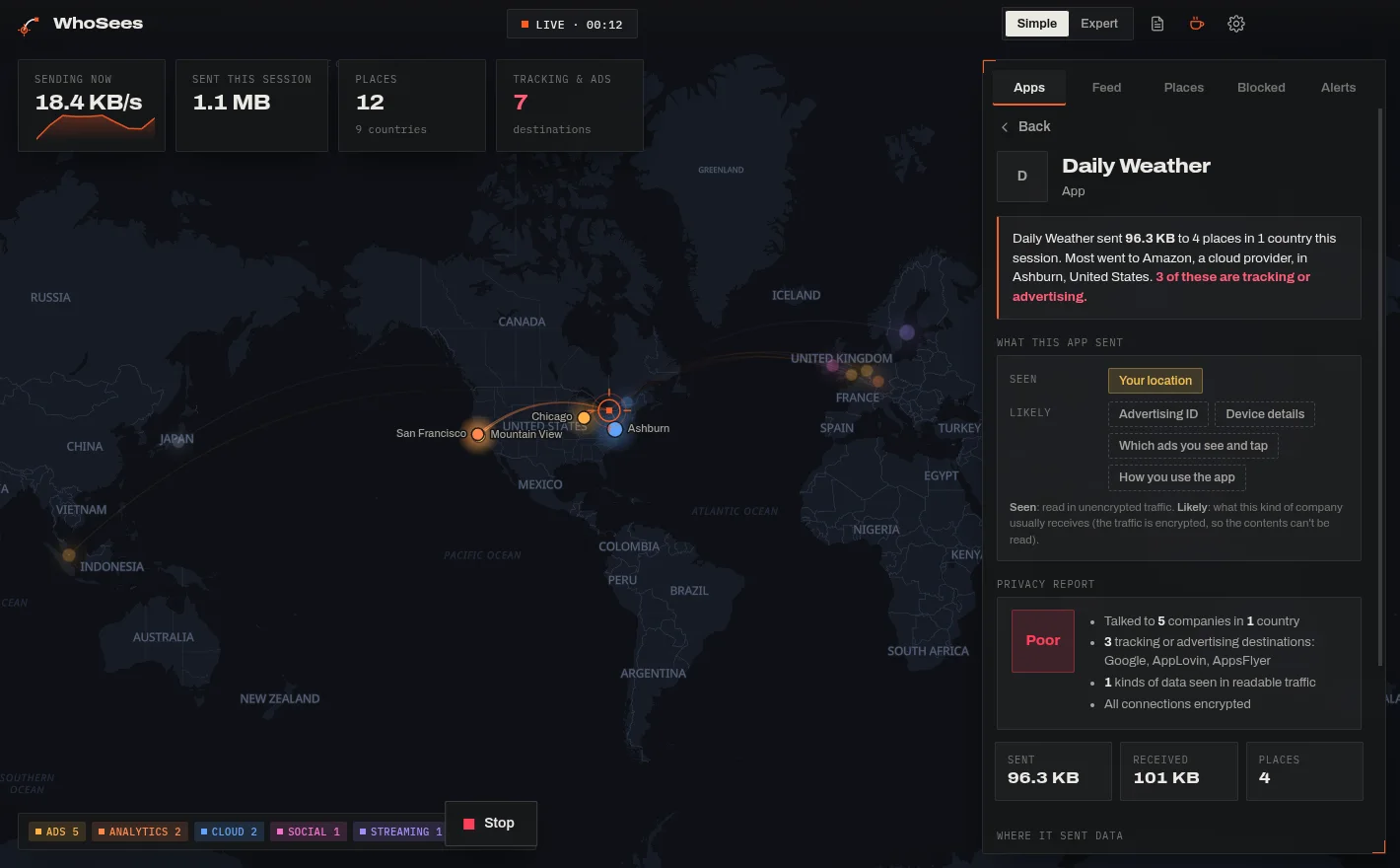 4132
- 1A plain-English summary.
- 2Privacy report grade.
- 3What this app sent: Seen and Likely.
- 4Back to the list.
 132
- 1Summary
- 2Privacy grade
- 3What it sent
Check a place on the map
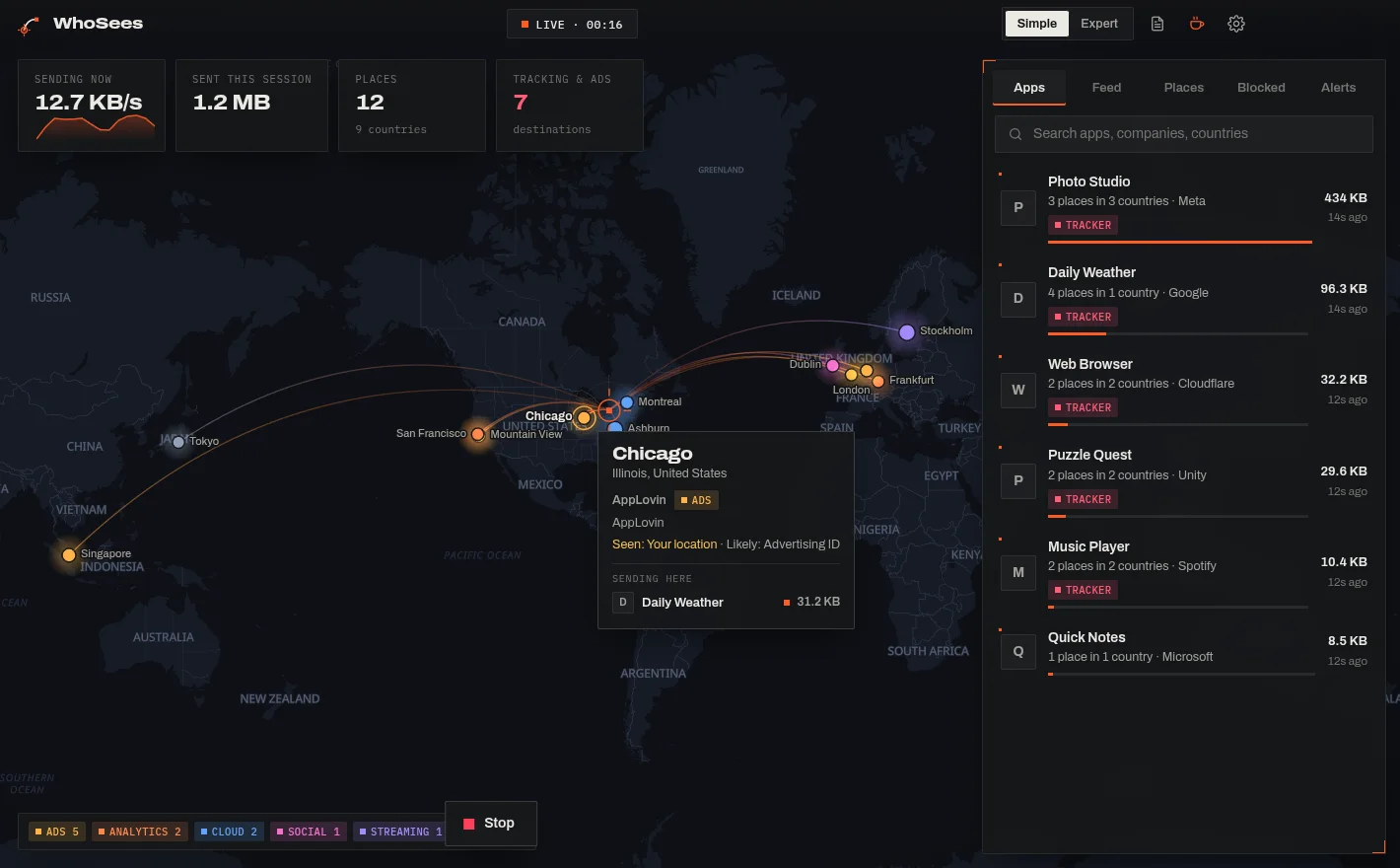
On a computer, point at any dot. On a phone, tap it. A card shows the city, the company, what it likely receives, and which of your apps send data there.
 12
- 1Point at (or tap) a dot.
- 2The city, company, likely data, and the apps sending there.
See every company and country
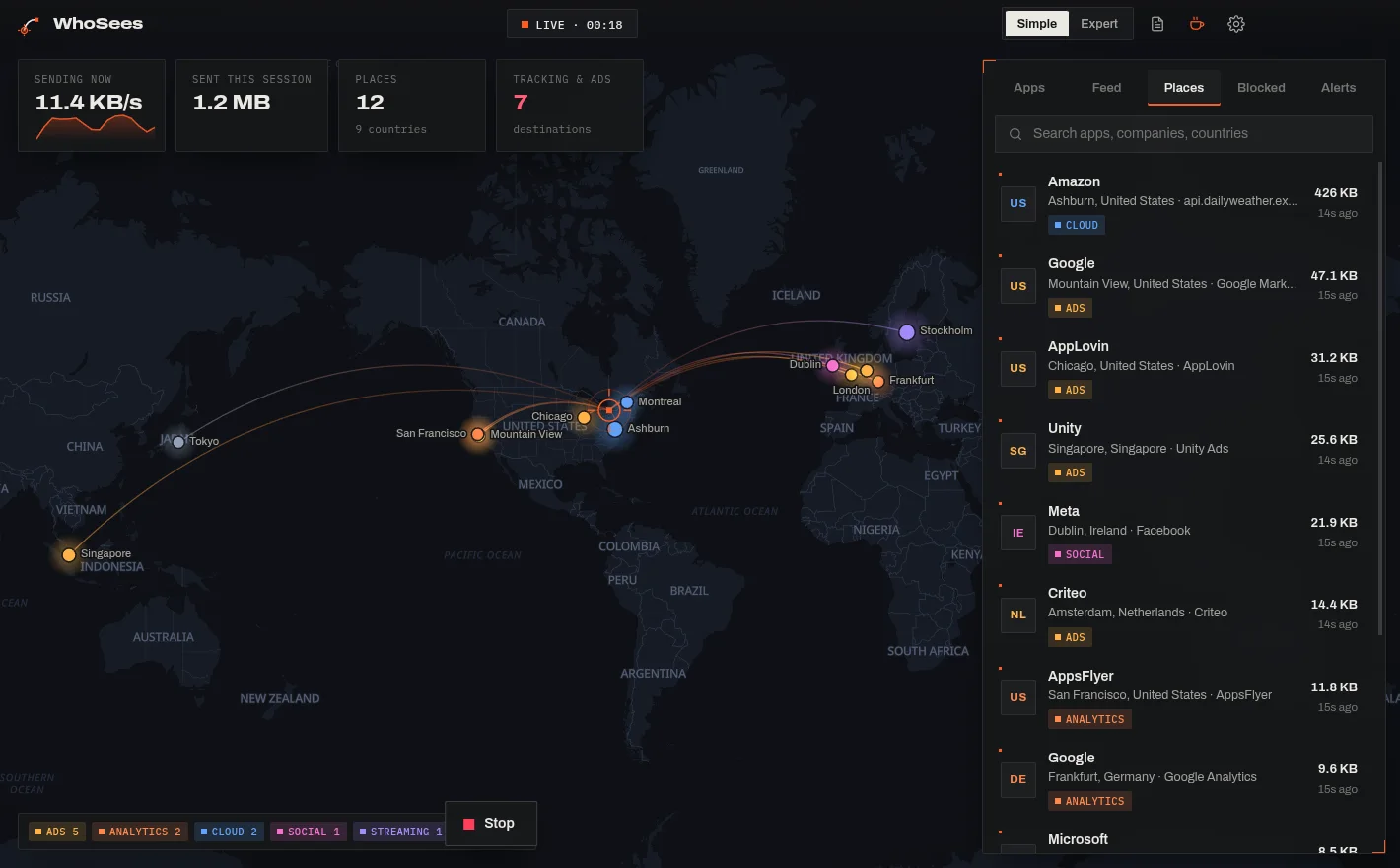
Open the Places tab for a list of every company and place your data went, with a flag for each country. Click one to see which apps sent data there.
 12
- 1Places tab
- 2A company in a city, with how much was sent.
Watch connections as they happen
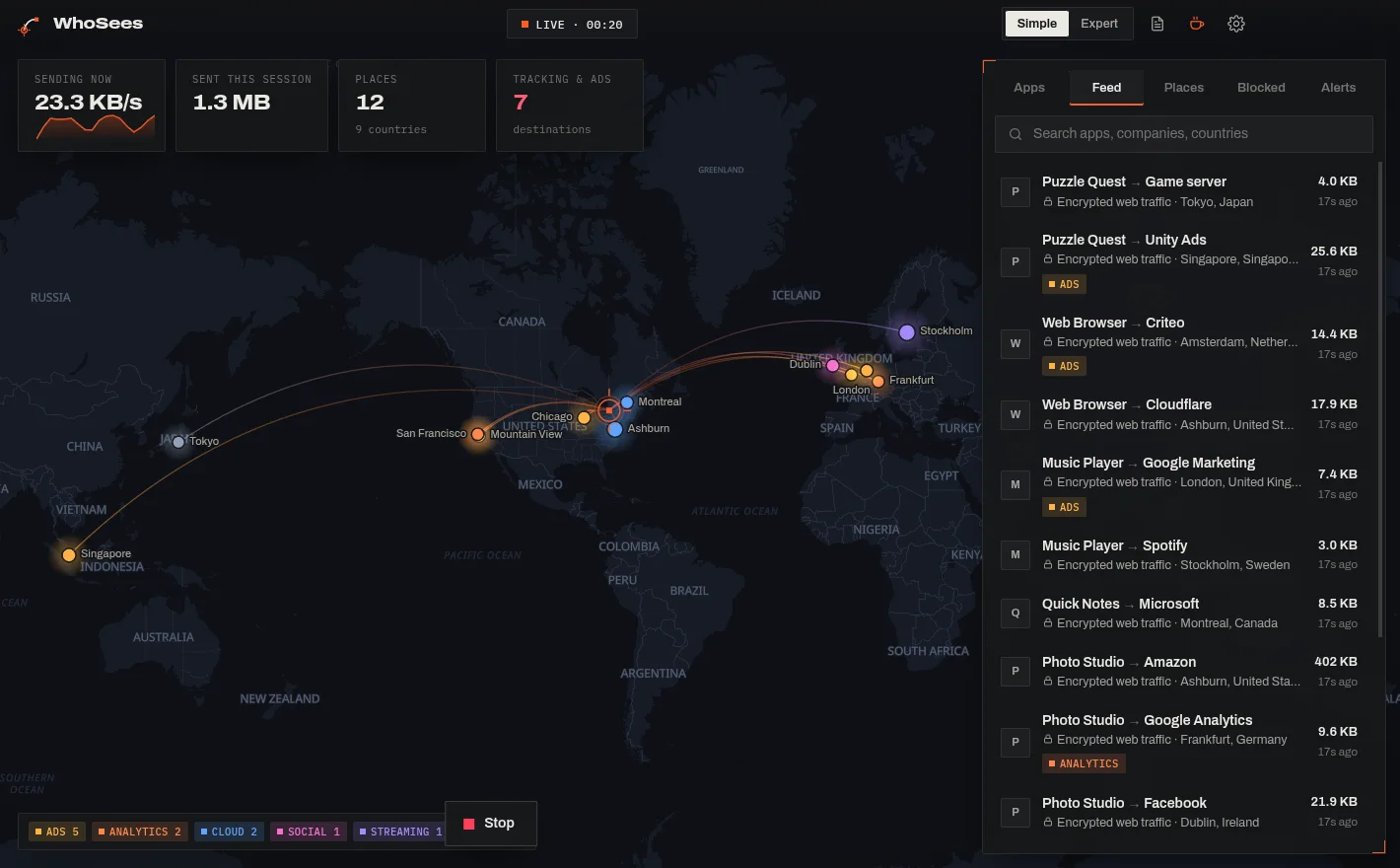
The Feed tab lists each connection the moment it happens, newest first: which app, which company and where.
 12
- 1Feed tab
- 2The newest connection.
Search
Type in the search box above the list to find an app, a company or a country, for example google or Ireland. The list and the map show only what matches.
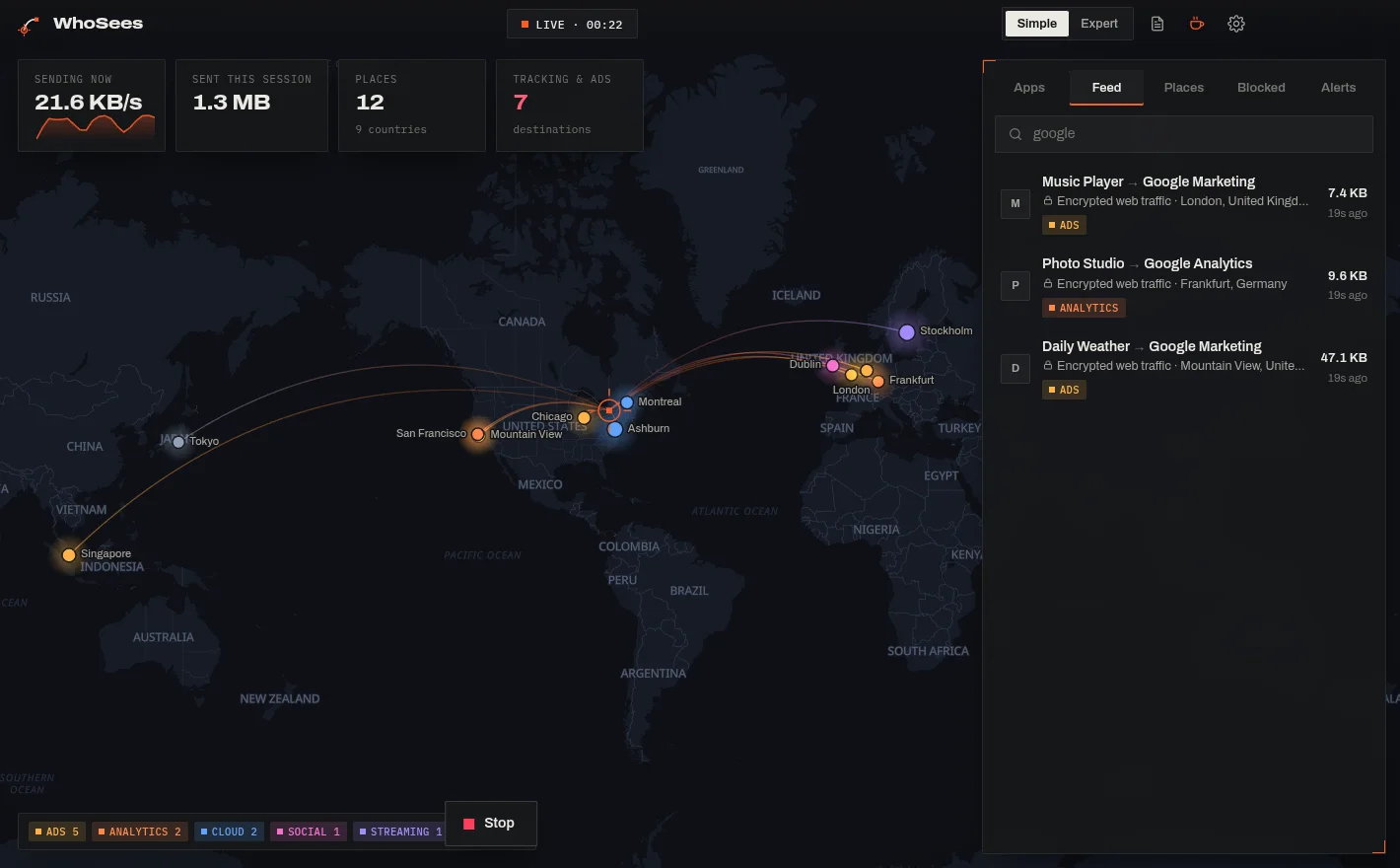 12
- 1Type here.
- 2Only matching results are shown.
Technical details (Expert)
Switch from Simple to Expert at the top to see network addresses, ports, protocols and exact byte counts. Switch back to Simple any time.
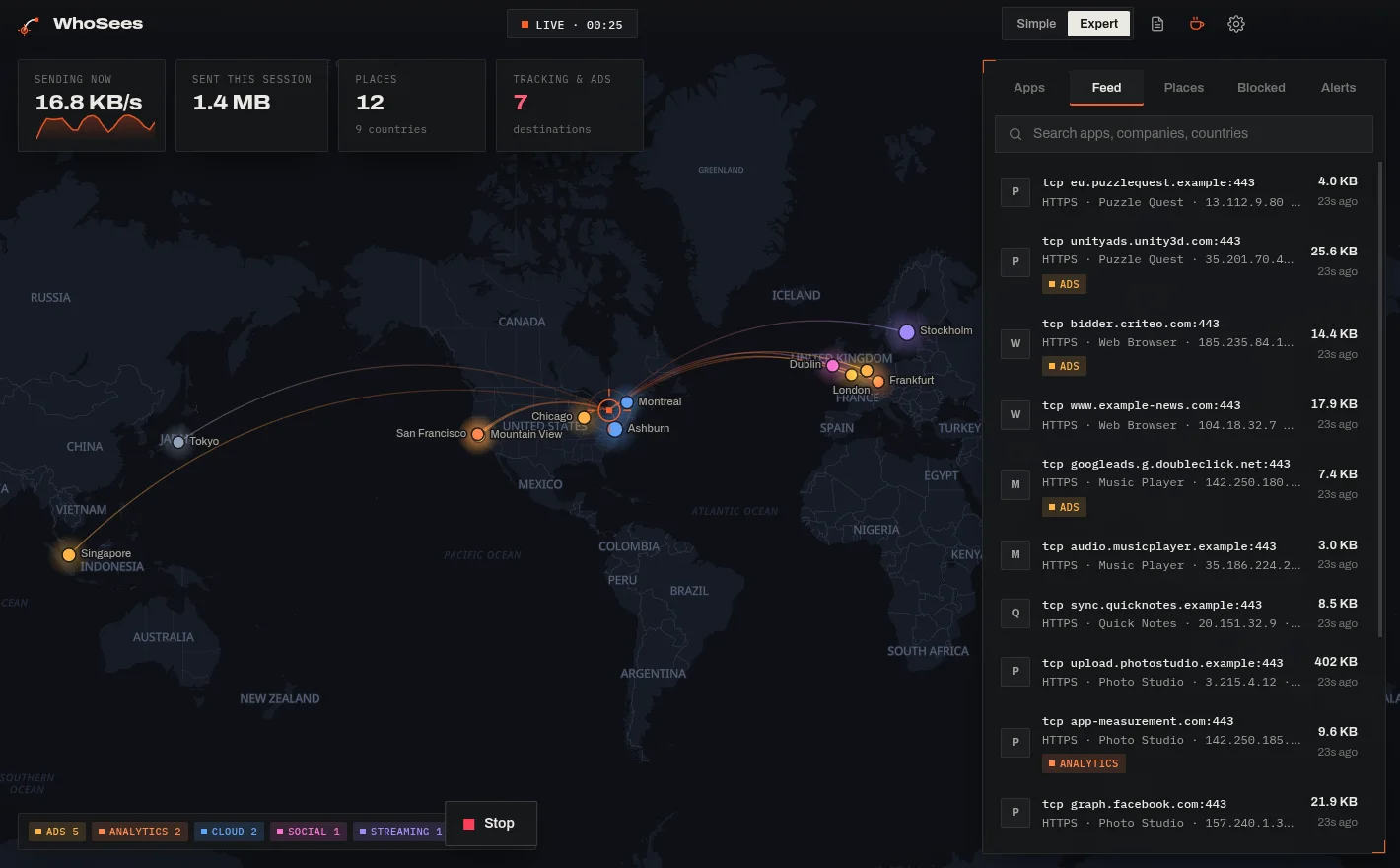 12
- 1Expert switch
- 2Technical details for each connection.
When WhoSees warns you
If an app connects to a known scam or malware website, or does something suspicious, a warning appears at once. On a phone you also get a notification.
- Read the warning: it says which app, where it connected and why that matters.
- Press Block now to stop it straight away (WhoSees keeps blocking a dangerous site in future live views), Details to see that app or place, or Trust if you recognise it and it's fine.
- If you don't recognise the app, remove it. On a computer, if it runs from your Downloads or a temporary folder, close it and delete the file.
- All warnings are kept in the Alerts tab until you stop.
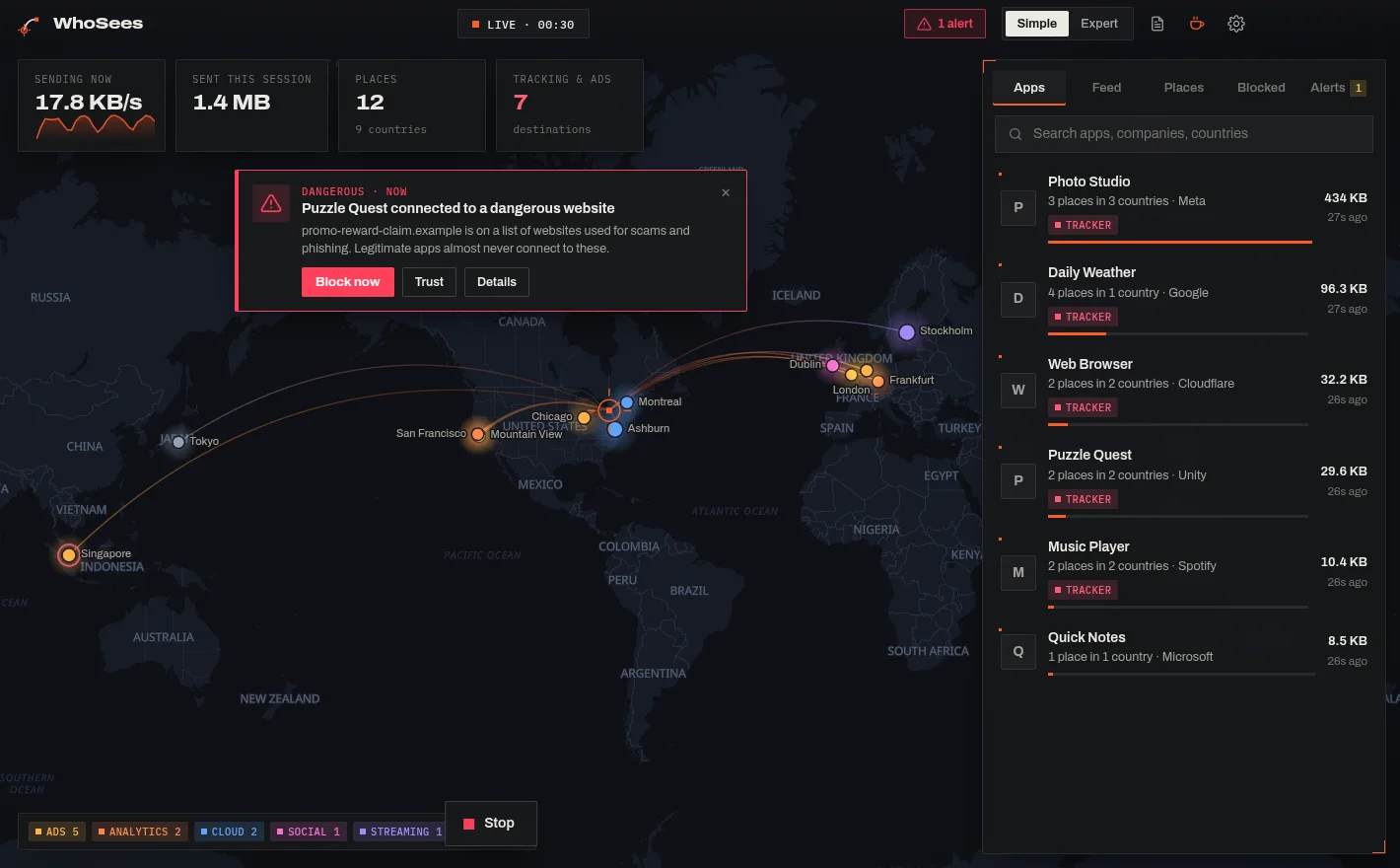 123
- 1The warning.
- 2Block now stops it.
- 3The alert badge: click to see all warnings.
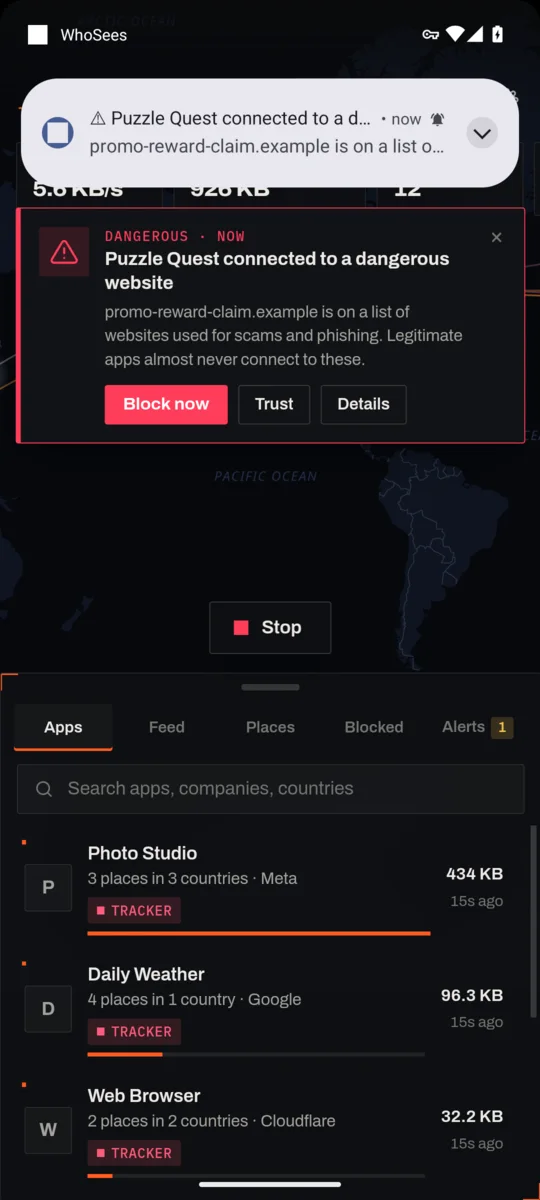 12
- 1The warning.
- 2Block now
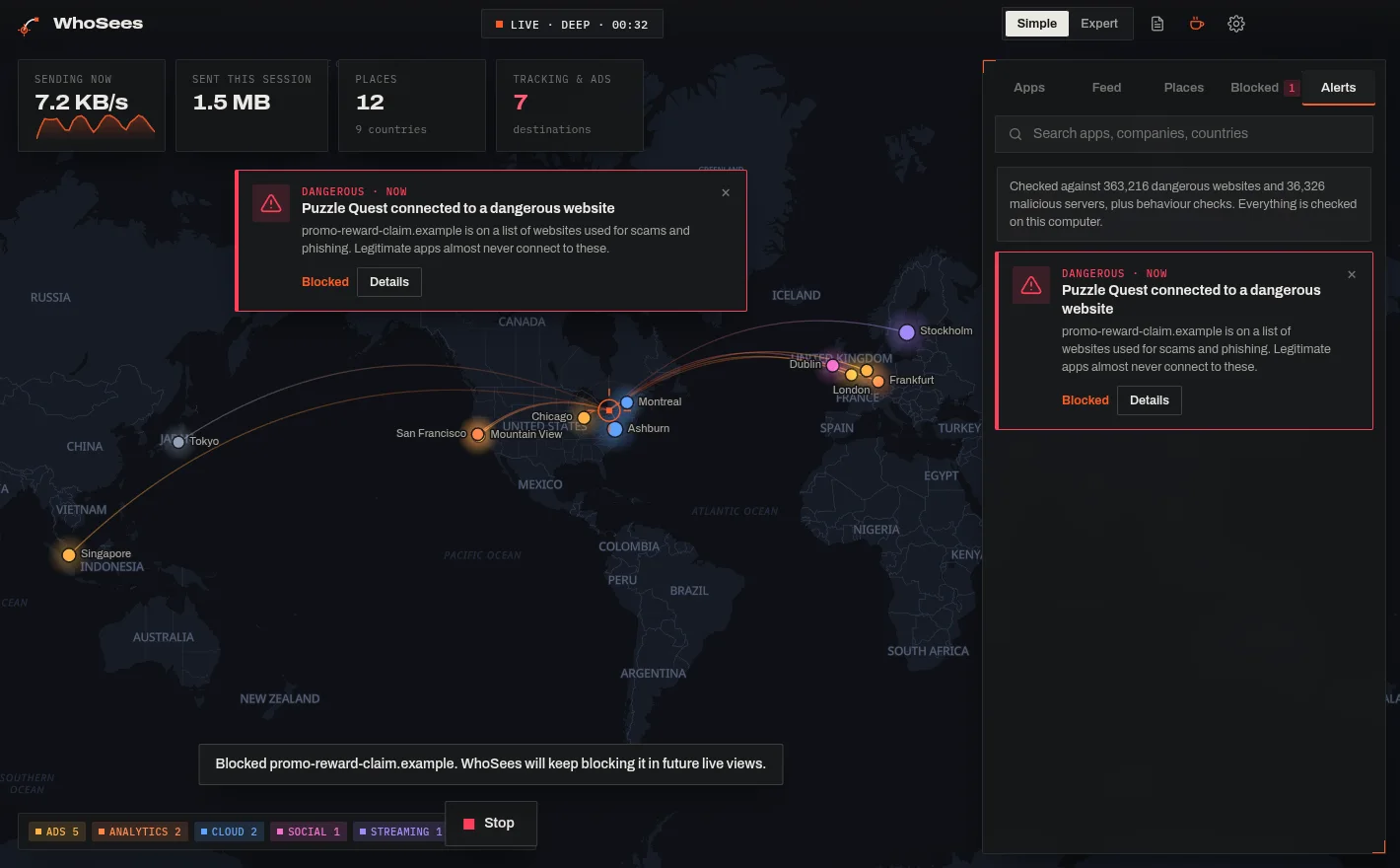 12
- 1Alerts tab
- 2Every warning from this session.
Block apps, companies and trackers
WhoSees can stop an app talking to a company, a website or a whole country, or stop every tracker and advertiser at once. Blocking works only while a live view runs, and WhoSees never blocks anything you didn't choose.
- A company, website or country: click it on the map (or in Places) and scroll to Block. Pick what to block.
- Every tracker and advertiser: open the Blocked tab and switch on Block all trackers and ads.
- A whole app (Windows and Android): open the app in Apps and choose Block … from the internet.
- Blocked places show a red ring on the map, with the number of attempts WhoSees stopped.
Block all trackers and ads goes by website names, never by guesses. Some trackers share a server address with ordinary websites (big content networks do this); WhoSees leaves such an address open, so the ordinary website keeps working.
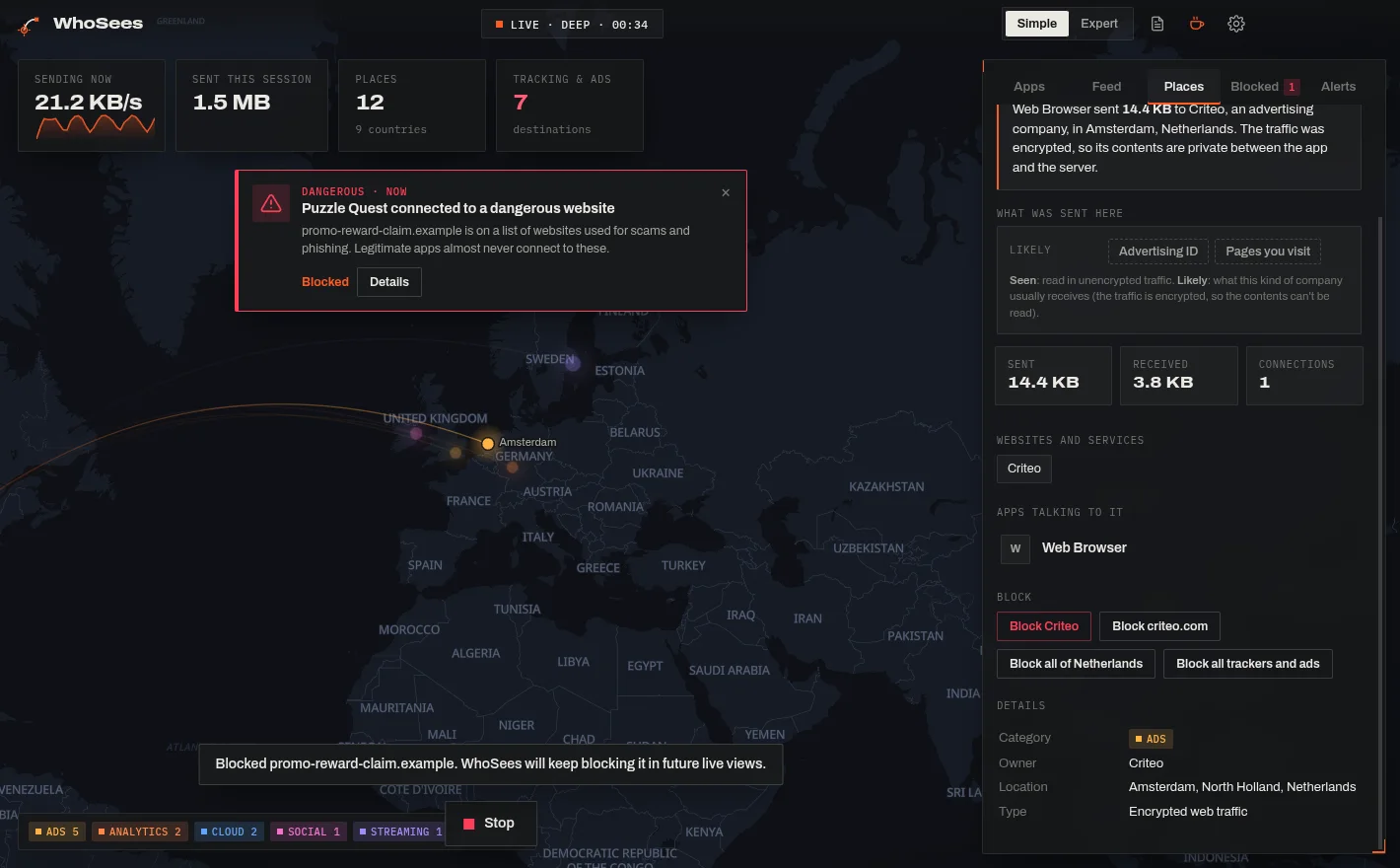 123
- 1Block the company.
- 2Or every tracker and advertiser at once.
- 3Or a whole country.
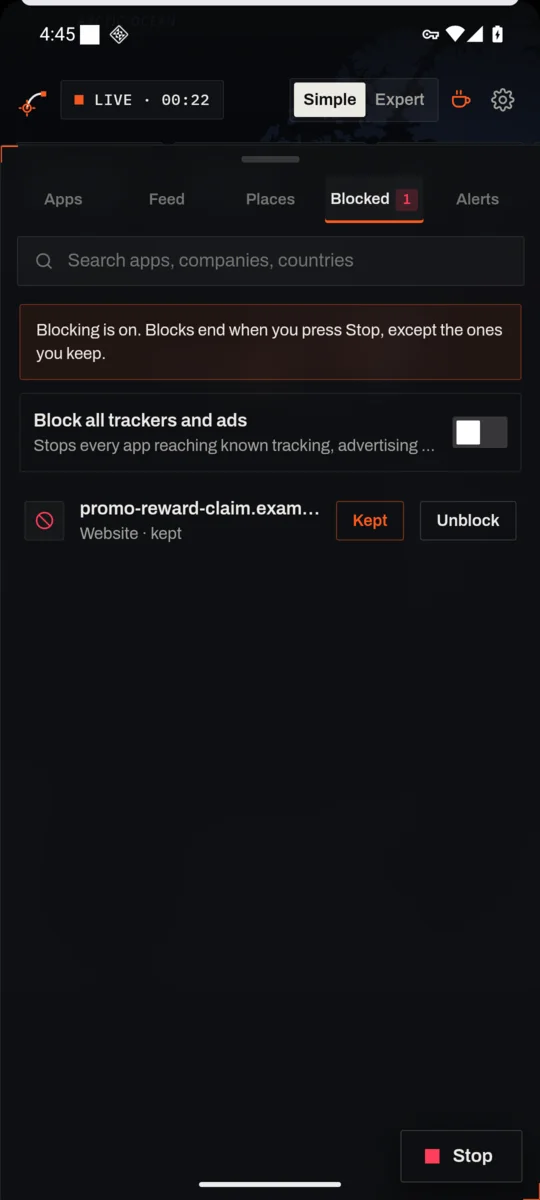 12
- 1Block all trackers and ads
- 2Keep
Blocks end when you press Stop, so nothing stays blocked by surprise. To keep blocking something in future live views, press Keep next to it in the Blocked tab. Unblock removes it at once.
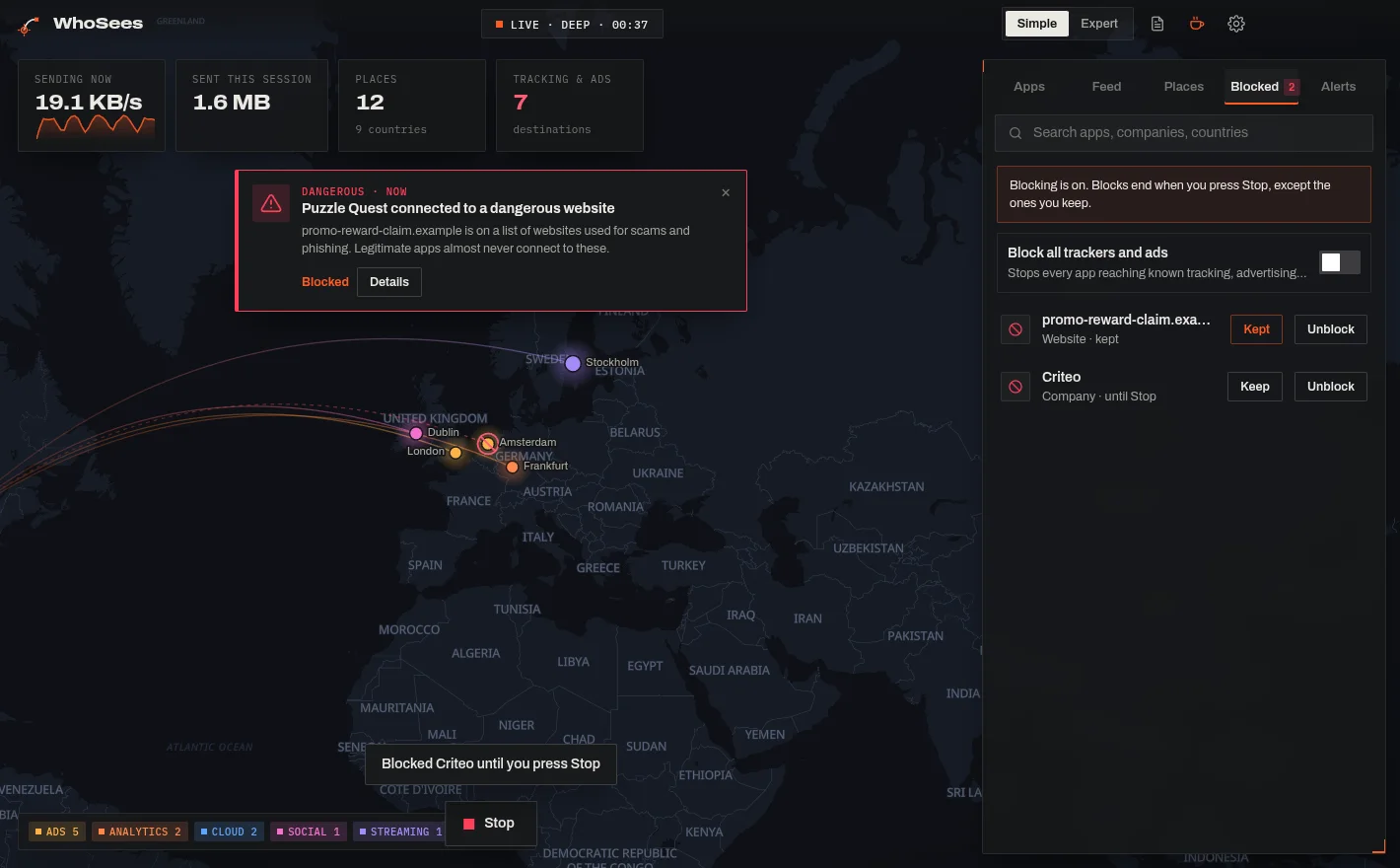 123
- 1Block all trackers and ads
- 2Keep: keep blocking it next time.
- 3Unblock
| ON | WHAT BLOCKING NEEDS |
|---|---|
| Android | Nothing extra: blocking works in every live view. |
| Windows | Deep mode. WhoSees adds temporary Windows Firewall rules and removes them when you press Stop. |
| Linux | Deep mode. WhoSees adds a temporary firewall table (nftables, or iptables if nftables isn't installed) and removes it when you press Stop. Linux can't block a single app, only where apps connect to. Blocking a whole country needs nftables. |
If you press Block while Deep mode is off, WhoSees offers to turn it on for you.
Save a report (PDF)
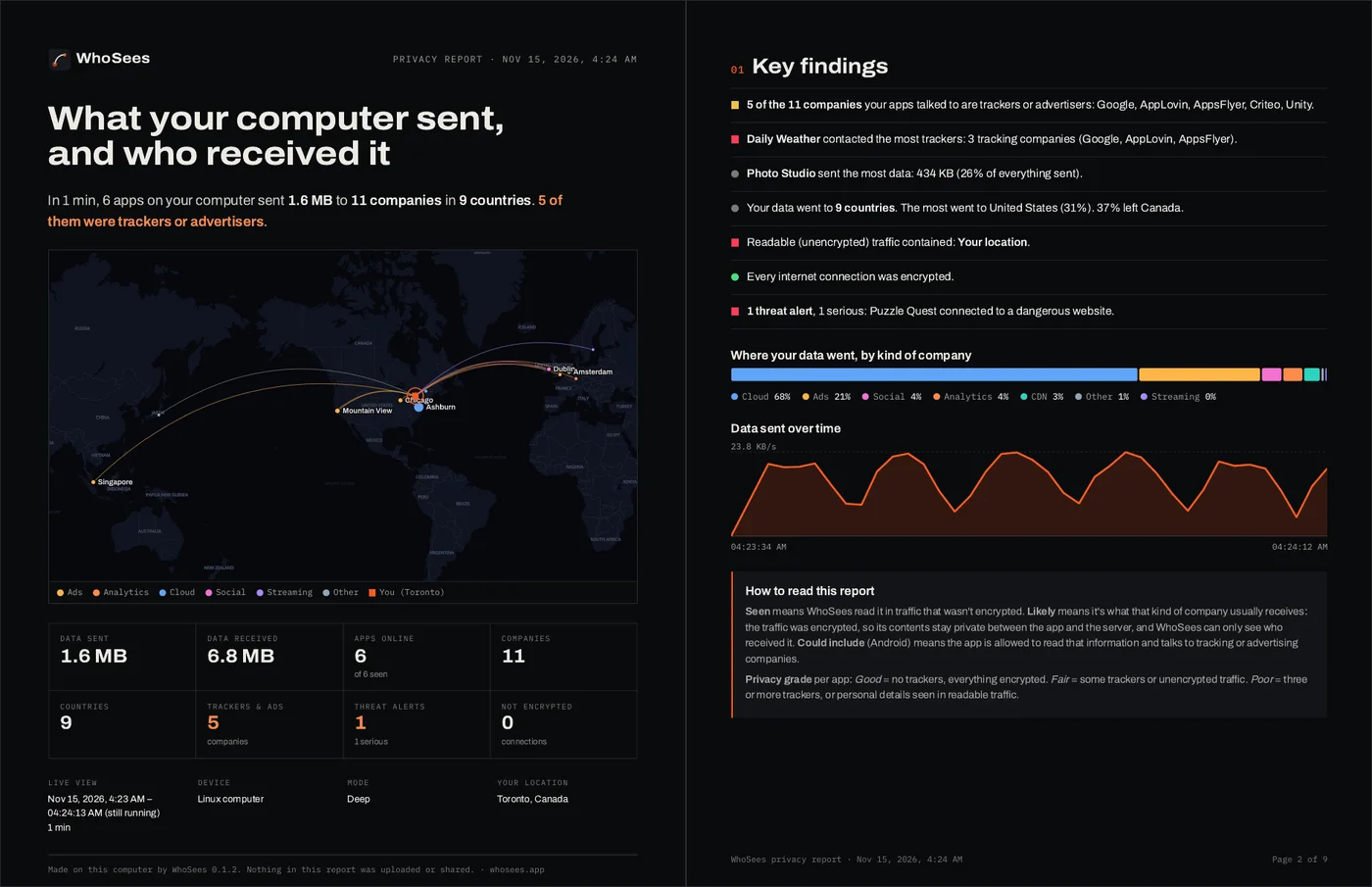
A report is a PDF of everything a live view found, to keep, print or share: a map, the key findings in plain English, every app with its privacy grade, every company, country and tracker, any threats and blocks, and a list of every connection.
- During a live view, click the report button at the top (on a phone: Settings → Report). After you press Stop, you can also use Save a report of this live view.
- Pick a style (Dark, or Light to save ink when printing) and a paper size (Letter or A4), then Save PDF.
- On a computer, choose where to save it. On Android, the phone's print screen opens: choose Save as PDF at the top, then tap the round PDF button.
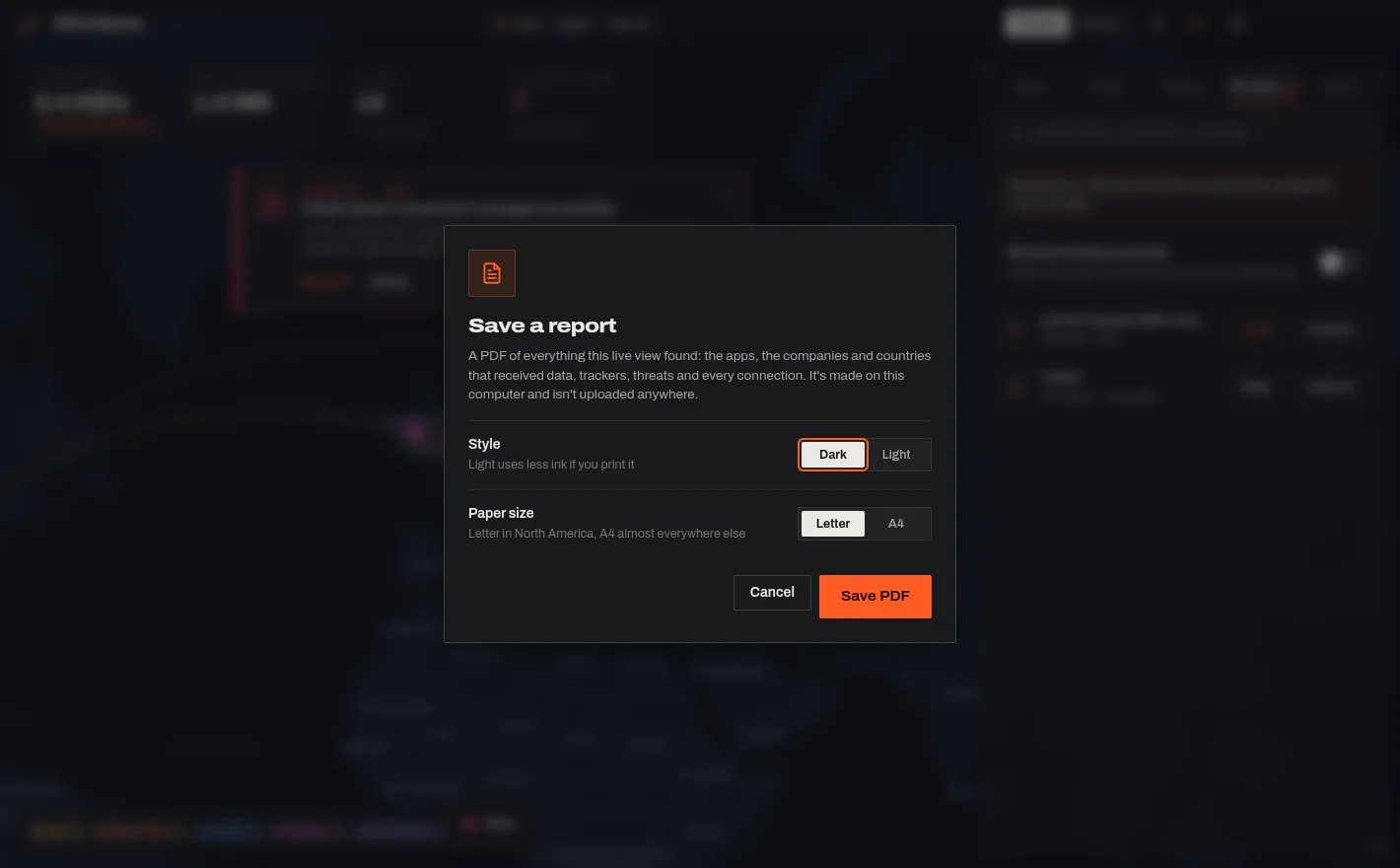 1234
- 1The report button
- 2Style
- 3Paper size
- 4Save PDF
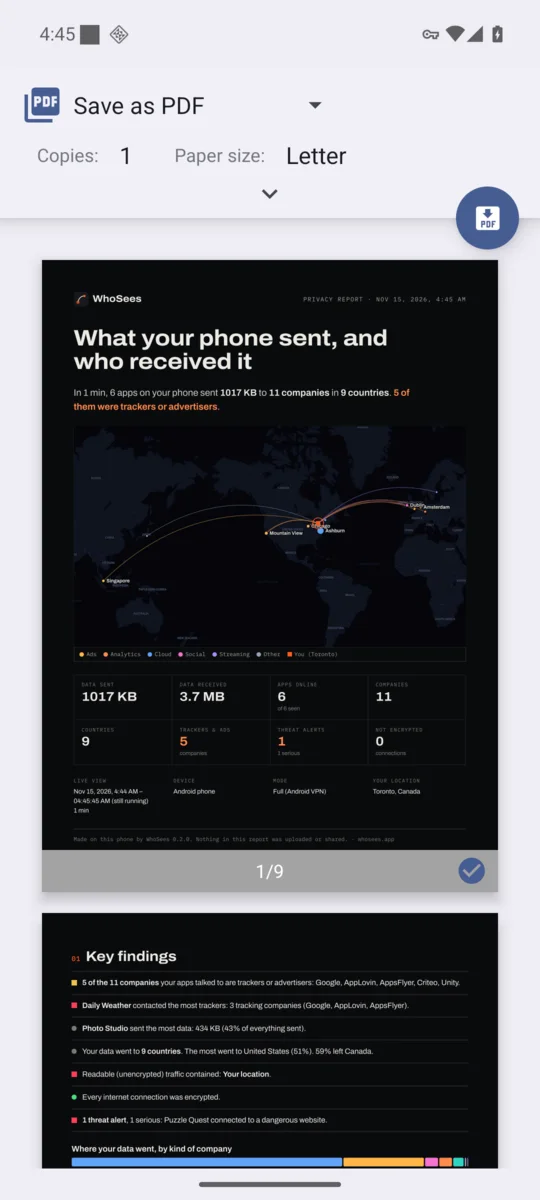 1
- 1Choose Save as PDF here, then tap the round PDF button.
The report is made on your device and isn't uploaded anywhere. It covers the live view you just ran: starting a new one starts a new report.
Missing website names on Android (Private DNS)
If your phone uses Private DNS with a named provider, website names are encrypted before WhoSees can see them. WhoSees tells you when you press Start:
- To see website names, tap Open Settings, search for Private DNS, choose Off, then come back and press Start.
- Or tap Start anyway: you'll still see the app, company and country.
- Turn Private DNS back on when you're done. WhoSees reminds you when you press Stop.
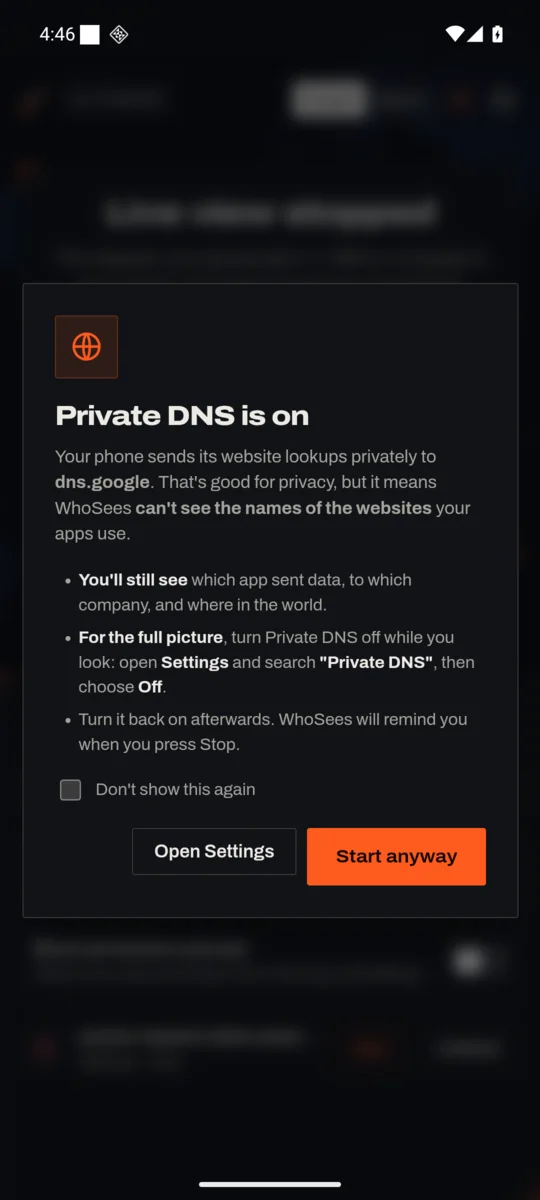 12
- 1Open Settings
- 2Start anyway
More in What is Private DNS on Android?
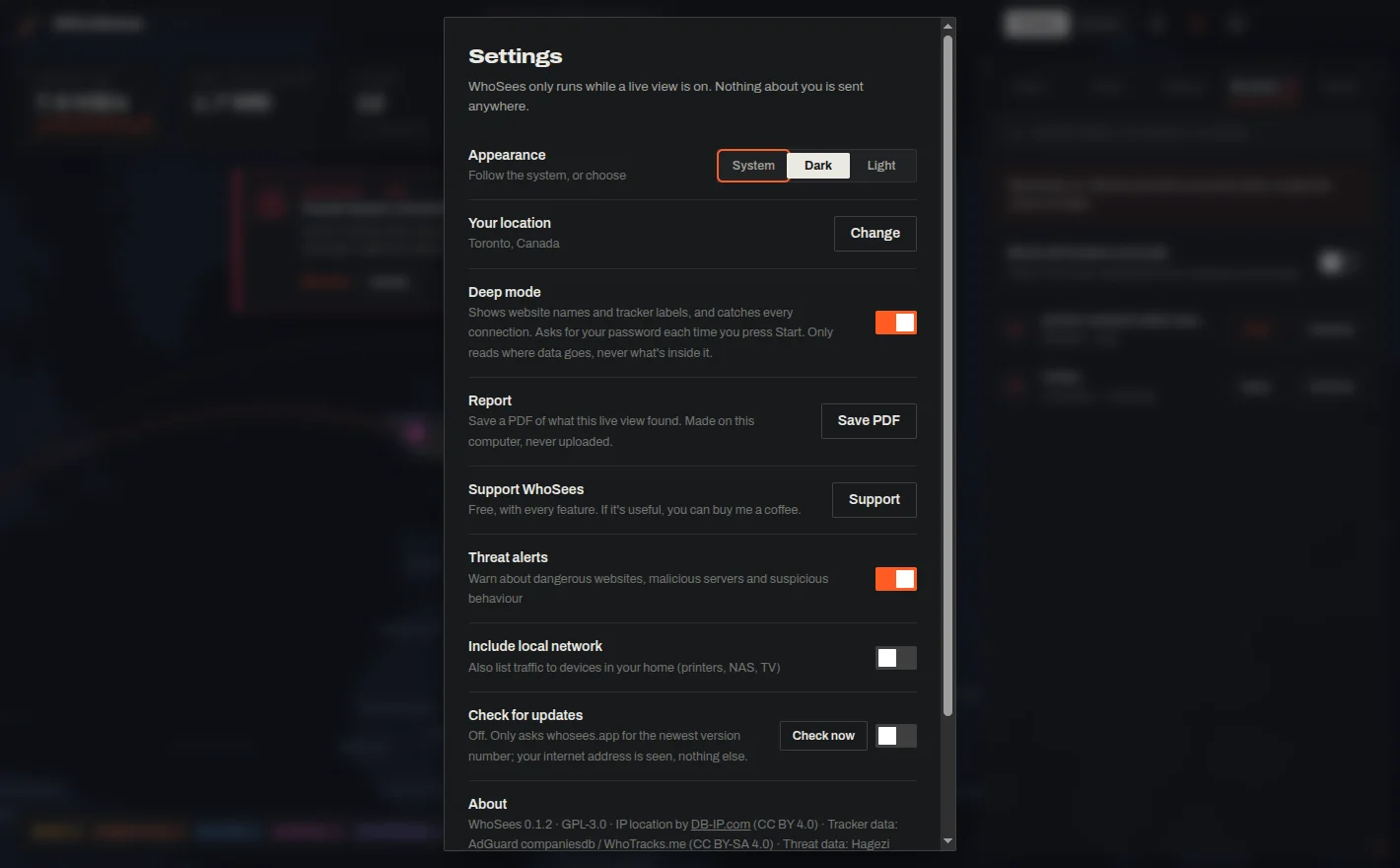
Settings
Click or tap the gear at the top right.
| SETTING | WHAT IT DOES |
|---|---|
| Appearance | Follow your system, or always dark or light. |
| Your location | Where the lines start from. Change to pick another city. |
| Deep mode | (Computers) Website names and every connection; asks for permission each time you press Start. |
| Threat alerts | Warn about dangerous websites, malware servers and suspicious behaviour. On by default. |
| Include local network | Also list devices in your home, like printers and TVs. |
| Report | Save a PDF of what the current or last live view found. |
| Check for updates | Off unless you turn it on. When on, once a day when you open WhoSees it asks whosees.app for the newest version number and tells you if there's a newer one. Check now checks straight away. |
| About | Version, data credits and Open-source licences. |
 1
- 1The gear opens Settings.
Stop WhoSees
Press Stop at the bottom of the map. WhoSees stops completely: nothing keeps running in the background, and any blocks end (except the ones you chose to Keep, which return in your next live view). Closing the app does the same. On Android the VPN key icon disappears.
Support WhoSees
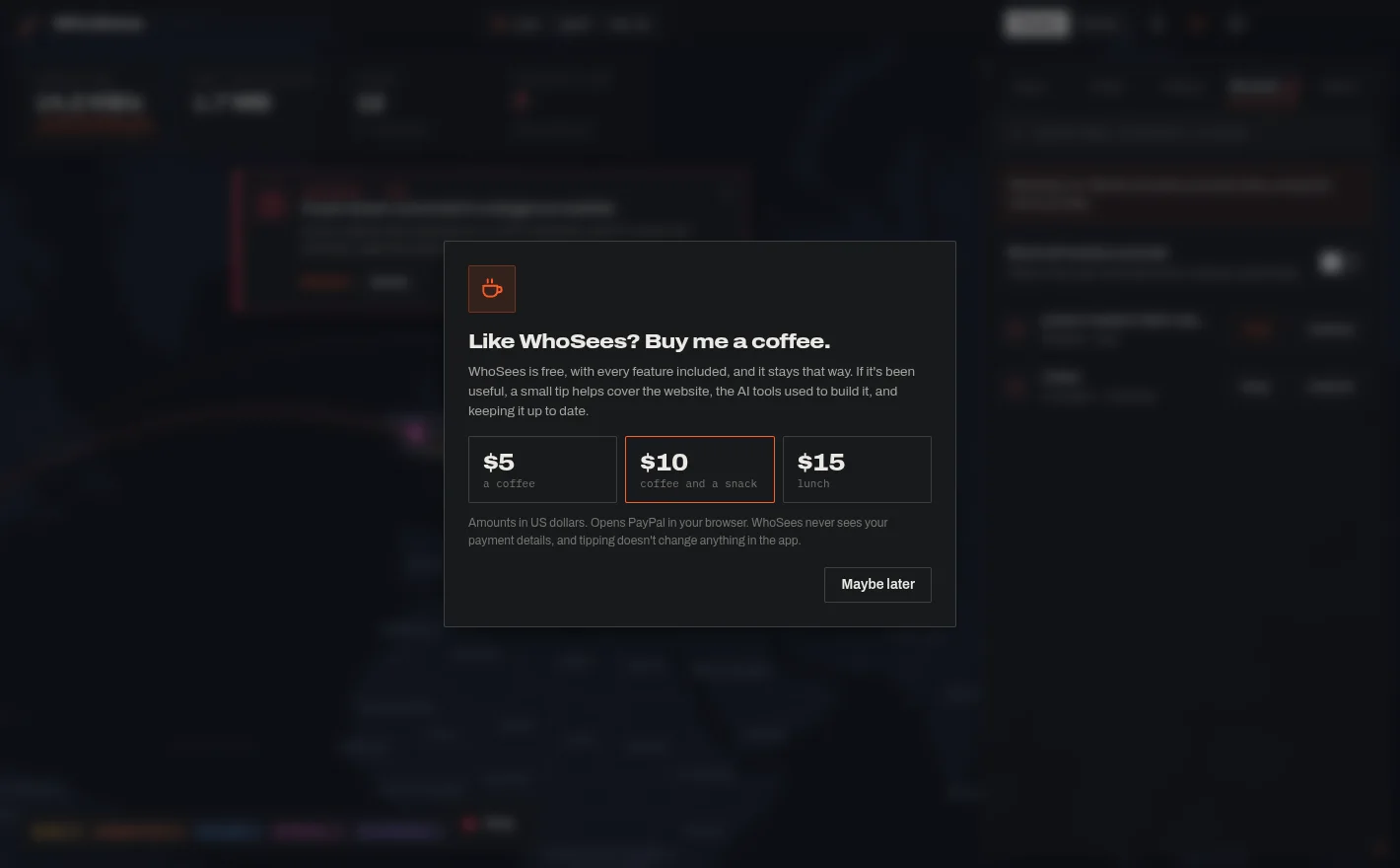
Every feature is free. If WhoSees is useful to you, open Settings → Support WhoSees (or the coffee section on this website) and pick $5, $10 or $15. It opens PayPal in your browser; WhoSees never sees your payment details, and tipping doesn't change anything in the app.
 1
- 1Pick an amount to open PayPal.
Troubleshooting
| PROBLEM | WHAT TO DO |
|---|---|
| Nothing appears after Start | Use a few apps or open a website; connections appear within seconds. |
| The password window doesn't appear (Linux) | It may be behind the WhoSees window. Check your taskbar. |
| "Deep mode didn't start" | The password was wrong or the window was closed. Choose Try again, or Keep Standard view. |
| Windows says "Windows protected your PC" when installing | Click More info, then Run anyway. Why this happens. |
| "Is another VPN app on?" (Android) | Android allows one VPN at a time. Turn off the other VPN app, then press Start. |
| No website names (Android) | Private DNS is on. See above. |
| An app shows as "Windows service" or "Short-lived program" | A protected Windows service, or a program that ran for only a moment. Deep mode names more of them. |
Questions
I pressed Start but nothing appears.
WhoSees shows connections as they happen. Open a few apps, a website or a video, and they'll appear within seconds.
Does WhoSees slow down my internet?
No. It only notes where each connection goes. Streaming, browsing and downloads run at normal speed.
Can WhoSees read my messages or passwords?
No. It sees where your data goes, never what's inside encrypted traffic.